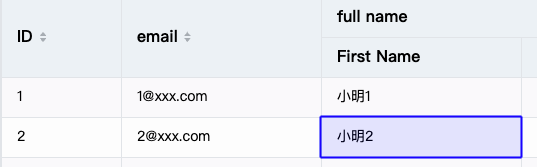
When using VTable for data analytics, individual cells can be selected with a mouse click. Once a cell is selected, you can manipulate the cell or get the corresponding data. By default, VTable allows click-to-select cells.
As shown above, after clicking on cell (2,3), the cell is selected.
Clicking on the header cell will select the entire row or column by default. If you only want to select the current cell, you can set select.headerSelectMode to 'cell', Or if you only want to select cells in the body, you can set select.headerSelectMode to 'body'.
Mouse box selection
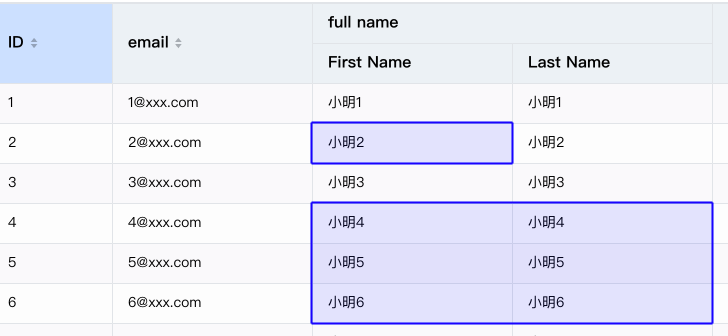
In addition to clicking on a single cell, VTable also supports mouse box selection, which can select multiple cells by dragging the mouse. This feature allows the user to select multiple cells at once (Hold down ctrl or shift to make multiple selections). By default, VTable has mouse box selection turned on.
As shown in the image above, the user selects multiple cells by dragging the mouse.
Call interface selection
A certain business scenario, such as linkage selection with other modules, is not a manual mouse-triggered selection. The selection can be completed with the help of the interface.
Single cell selection
Usage is as follows:
// Select cells in 4 columns and 5 rows
tableInstance.selectCell(4,5);
Cell range selected
Call the interface selectCells, the usage is as follows:
// Two ranges in the table: from column 1, row 2 to column 4, row 2 and from column 3, row 5 to column 7, row 8
tableInstance.selectCells([{start:{col:1,row:2},end:{col:4,row:2}},{start:{col:3,row:5},end:{col:7 ,row:8}}]);
Clear current selection
call api clearSelected.
Select style
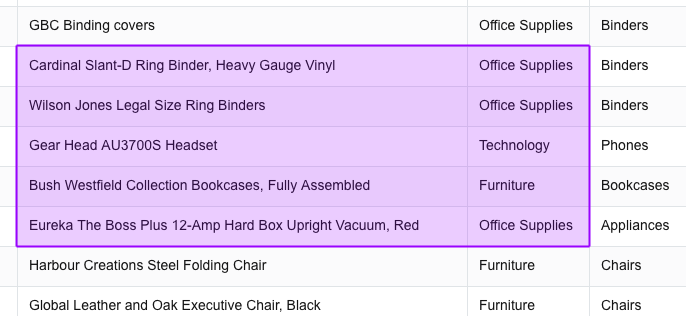
When one or more cells are selected, VTable applies specific styles to enable the user to identify the selected cells. can be passed theme.selectionStyle Configure the selected style.
For example, to set the background color of the selected cell to purple, you can configure it like this:
After enabling shortcut keys, users can use the browser's built-in copy shortcut keys (such as Ctrl+C, Cmd+C) to copy the selected cell content. VTable maintains two copy formats:
new ClipboardItem({
'text/html': new Blob([dataHTML], { type: 'text/html' }),
'text/plain': new Blob([data], { type: 'text/plain' })
})
There is also an event called copy_data to match the copying of content. This event will be triggered when copying and return the content copied to the clipboard.
If you want to obtain the selected content as the copy content through the interface, you can call the interface getCopyValue.
In addition, we provide the configuration item formatCopyValue to format the copied content. For example, if you want to add a suffix "Copy content from XXXX" to the copied content
Open Select All
When operating on table data, the user may want to shortcut all the contents of the table. The Open Select All function allows the user to select all the contents of the table at once by holding down the Ctrl key and pressing the A key. It should be noted that this function is turned off by default, and the Select All function is turned on with the following configuration:
After disabling selection interaction, the user cannot select cells by clicking or dragging the mouse.
There are special needs that do not want users to be able to select certain columns in the table. For this requirement, VTable provides a configuration item column.disableSelect and disableHeaderSelect on the column, which allows us to prohibit the selection of a certain column [PivotTable does not have this configuration].
So far, we have introduced the cell selection functions of VTable, including mouse click selection, mouse box selection, disabling interaction selection, selecting styles, and choosing to copy cell content. By mastering these functions, you can more easily perform data analytics and processing in VTable.