It is not only a fully functional graph visualization library, but also an explorer of data relationships.
!!!###!!!title=scroll——VisActor/VTable tutorial documents!!!###!!!!!!###!!!description=In the process of data analytics, a large amount of data is usually displayed in the table. In order to display more data content at the same time and provide a better data query body, the scrolling function is particularly important. By scrolling, users can quickly find the desired content in the table and perform subsequent analysis and processing.!!!###!!!
Table scrolling
In the process of data analytics, a large amount of data is usually displayed in the table. In order to display more data content at the same time and provide a better data query body, the scrolling function is particularly important. By scrolling, users can quickly find the desired content in the table and perform subsequent analysis and processing.
Rolling performance advantage
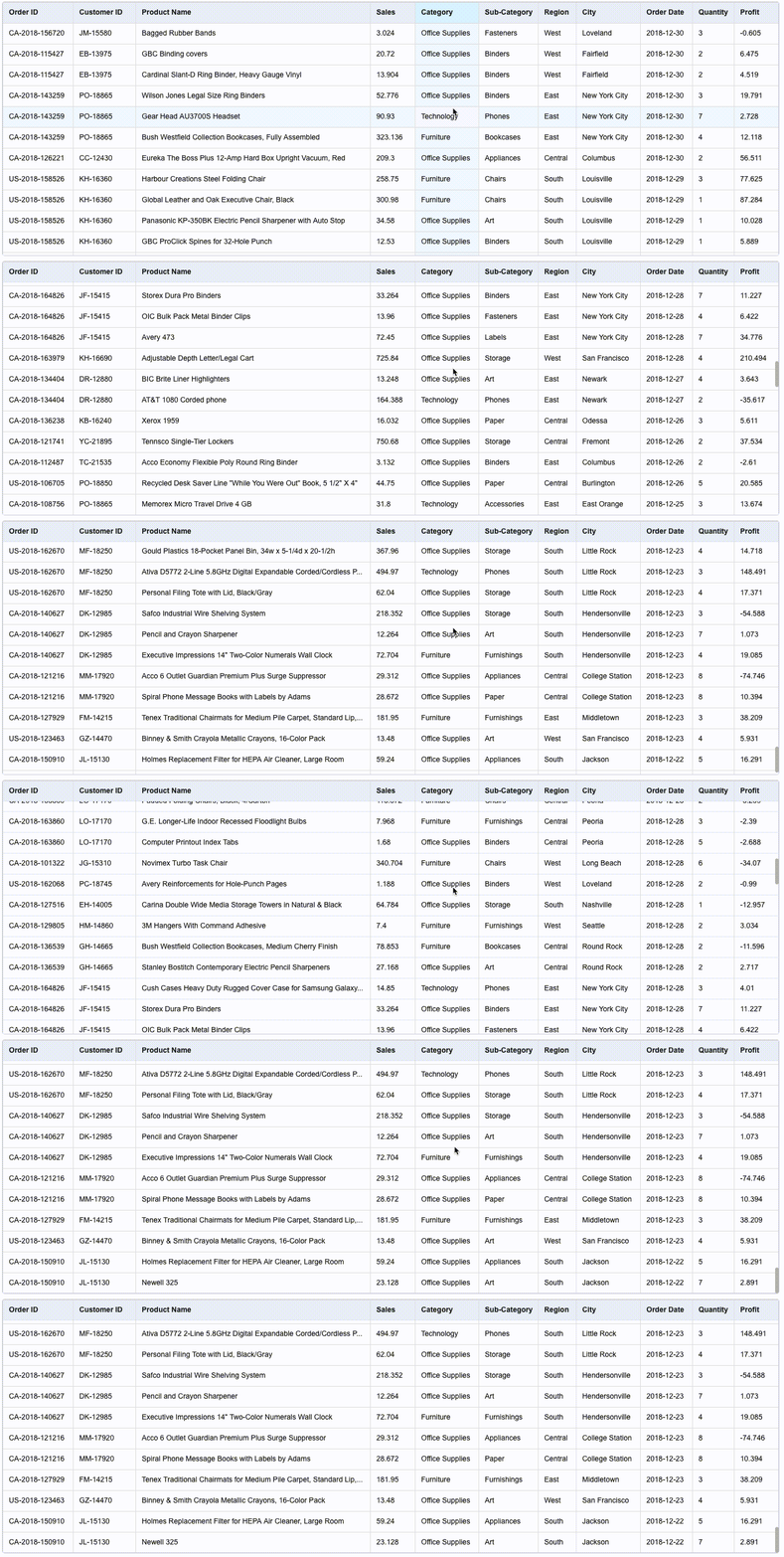
The underlying layer of VTable is rendered based on canvas, and only the visual Region content is drawn with each update, ensuring smooth scrolling even when working with big data.
Scroll style
VTable provides rich scroll style configuration items, and users can customize the current scroll bar style according to their own needs. Configure the scroll bar style through ListTable.theme.scrollStyle. The following are the details of the scroll style configuration:
scrollRailColor: Configure the color of the scrollbar track.
scrollSliderColor: Configure the color of the scroll bar slider.
scrollSliderCornerRadius: The corner radius of the scroll bar slider
width: Configure the scroll bar width.
visible: Configure whether the scroll bar is visible, and can be configured with values: 'always' | 'scrolling' | 'none' | 'focus', which correspond to: resident display | display when scrolling | display | focus on the canvas. Default is'scrolling '.
hoverOn: Specifies whether the scroll bar is suspended on the container or independent of the container. The default is true to float on the container.
barToSide: Whether to display to the edge of the container even though the contents are not full. Default false
ignoreFrozenCols: Ignore the width of frozen columns, default false
When horizontal scrolling inside frozen areas is enabled (for example scrollFrozenCols / scrollRightFrozenCols), there may be multiple horizontal scrollable regions (body / left frozen / right frozen). In this case:
visible: 'always': Scrollbars of all regions are always visible (only if the region is actually scrollable).
visible: 'scrolling': Scrollbars are shown when scrolling happens or when hovering over the scrollbar area, and will auto-hide after leaving.
visible: 'focus': Only the scrollbar of the region under the pointer is shown (to avoid multiple scrollbars showing at the same time).
Below we show the effect of these configurations with an example:
Scroll horizontally
VTable supports horizontal scrolling while holding down the Shift key, or directly dragging the horizontal scroll bar to make it easier for users to browse table data. Of course, if your computer has a touchpad, you can swipe left and right directly on the touchpad to achieve horizontal scrolling.
Horizontal scrolling inside frozen areas
After enabling frozen columns, if the frozen area's total frozen width exceeds the maximum frozen width (maxFrozenWidth / maxRightFrozenWidth), besides auto-unfreezing columns to fit the viewport, you can enable horizontal scrolling inside frozen areas to keep all frozen columns:
Left frozen area: enable with scrollFrozenCols: true
Right frozen area: enable with scrollRightFrozenCols: true
After enabling, trackpad horizontal scrolling works inside the corresponding frozen area (without scrolling the body first). When scrollbars are visible, independent horizontal scrollbars for frozen areas will appear at the bottom, supporting dragging the thumb or clicking the track.
By default (scrollFrozenColsPassThroughToBody: false), when you reach the start/end of a frozen area, the body will not scroll. If you want to continue scrolling the body after the frozen area hits its boundary, enable this option.
VTable provides the scrollToCell interface for scrolling to the specified cell location. The method accepts the cellAddr parameter to specify the cell location to scroll to. Example code is as follows:
table.scrollToCell({ row: 20, col: 10 });
In the above example, we will scroll to the cell position with row number 20 and column number 10.
Turn off browser default behavior
The browser default behavior can be turned off through the overscrollBehavior attribute of the configuration item, as shown in the following configuration instructions:
  /**
   * 'auto': Trigger the browser's default behavior when the table scrolls to the top or bottom;
   * 'none': When the table scrolls to the top or bottom, the browser's default behavior will not be triggered, that is, when the table scrolls to the boundary and continues to scroll, it will not trigger the scrolling of the parent page.
   * */
  overscrollBehavior?: 'auto' | 'none';
On a Mac computer, it sometimes appears that 'none' has been set, but the browser's default scrolling is still triggered (such as a rubber band effect or a page rollback is triggered).
This problem may be because the browser's default behavior is triggered outside the table, and the effect continues when scrolling in the table. In order to avoid this problem, you can set the css scroll bar style in the page body (and cooperate with VTable The overscrollBehavior is configured with two layers for restrictions):