It is not only a fully functional graph visualization library, but also an explorer of data relationships.
!!!###!!!title=fill handle——VisActor/VTable tutorial documents!!!###!!!!!!###!!!description=In the table editing scenario, we provide the fill handle capability, which can be enabled through the configuration item `fillHandle: true`. The fill handle can help users quickly fill in cell values and improve editing efficiency.Enable the fill handle capability configuration item:```javascript{ excelOptions: { fillHandle: true; }}```More capabilities similar to excel editing operations will be expanded in excelOptions in the future.!!!###!!!
fill handle
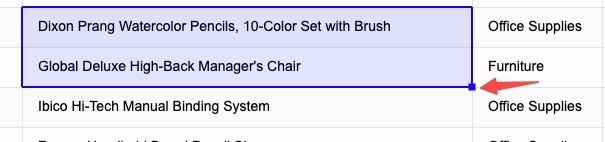
In the table editing scenario, we provide the fill handle capability, which can be enabled through the configuration item fillHandle: true. The fill handle can help users quickly fill in cell values and improve editing efficiency.
Enable the fill handle capability configuration item:
{
  excelOptions: {
    fillHandle: true;
  }
}
More capabilities similar to excel editing operations will be expanded in excelOptions in the future.
How to use the fill handle
VTable only implements the fill handle effect from the UI level, and the actual fill content generation logic needs to be implemented by the business side.
When fillHandle: true is configured, the fill handle icon will be automatically displayed in the lower right corner.
Next, we will introduce the process of combining events to populate content.
1. Listen to the
This event is triggered when the mouse clicks on the fill handle icon. You can obtain the current selection range by listening to this event in order to prepare for subsequent generation of cell content.
This event is triggered by releasing the mouse after dragging the fill handle. By listening to this event, you can learn the direction of the fill handle and the specific range of cells that need to be filled.
Call the interface getSelectedCellRange() as in the previous step to know the currently selected range. Combined with the direction of the fill handle, you can calculate the range of cells that need to be filled.
You can also call the interface getSelectedCellInfos() to get the value of the currently selected cell.
3. Fill in the content into the table
The above two steps generate the content that needs to be filled, and use the interface changeCellValues to change the value of the cell.
The dblclick_fill_handle event is triggered when the fill handle icon is double-clicked. You can fill subsequent cell contents by listening to this event.