It is not only a fully functional graph visualization library, but also an explorer of data relationships.
!!!###!!!title=drag header——VisActor/VTable tutorial documents!!!###!!!!!!###!!!description=In complex data tables, the order of columns may affect our analysis and understanding of the data. Sometimes we need to compare columns, and these columns may be far apart in the original table. The drag-and-drop header transposition function allows us to quickly adjust the order of columns and improve the efficiency of data analytics.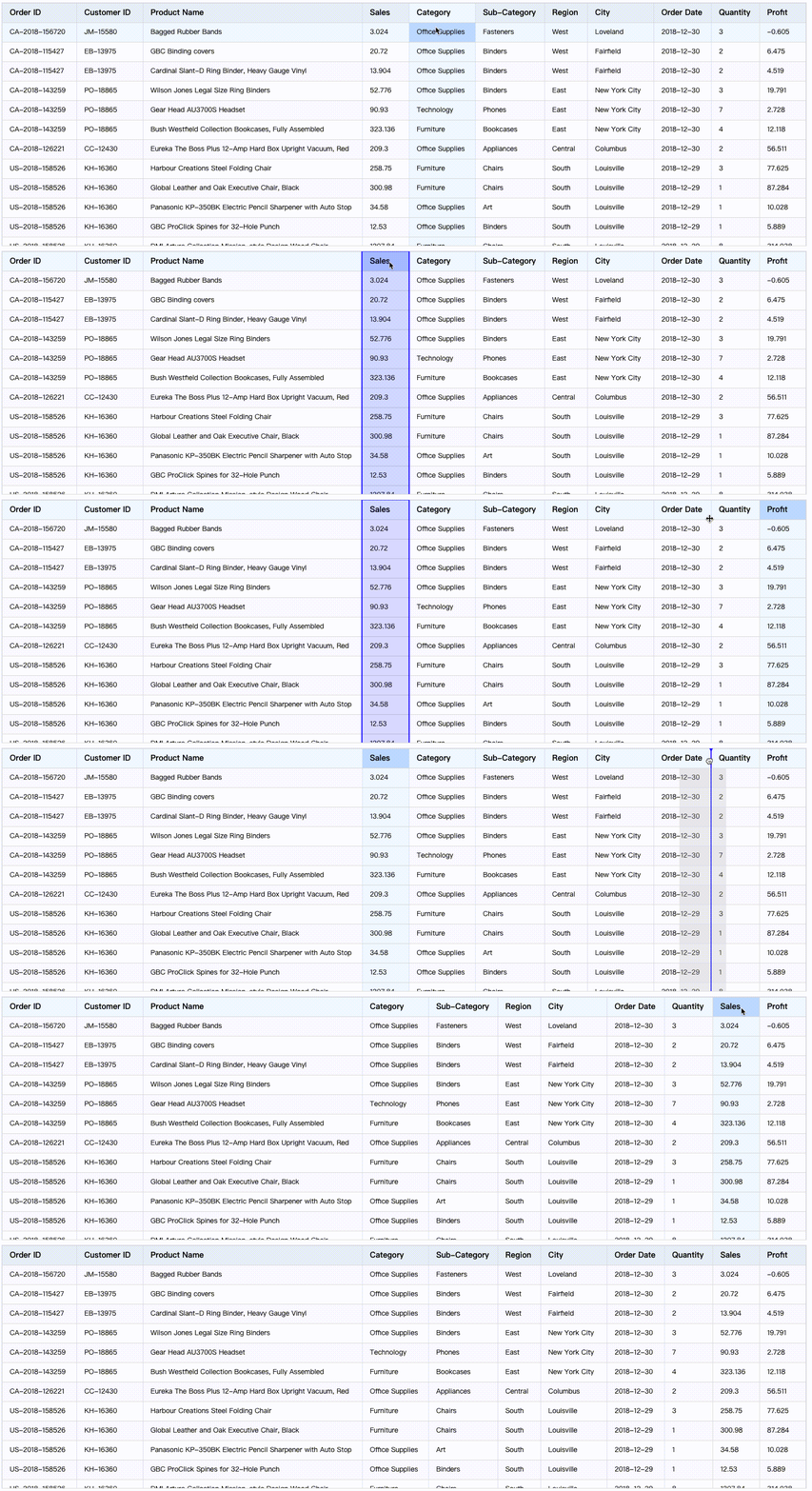!!!###!!!
Drag the head to transpose
In complex data tables, the order of columns may affect our analysis and understanding of the data. Sometimes we need to compare columns, and these columns may be far apart in the original table. The drag-and-drop header transposition function allows us to quickly adjust the order of columns and improve the efficiency of data analytics.
Turn on transposition function
By default, VTable's drag-and-drop header transposition feature is turned off. To enable this feature, you need to dragHeaderMode Set to 'all','column' or 'row'Where:
'all' Indicates that all headers can be transposed
'none' Indicates non-commutative
'column' Indicates that only the list header can be transposed
'row' Indicates that only row headers are transposed
Configured dragHeaderMode After that, you can drag and drop the header to transpose.
Transposition marker line style configuration
We can style the transposition markers to better render the appearance of the table. by setting theme.dragHeaderSplitLine, this function can be realized, and the specific configuration items are:
'lineColor' Drag and drop the color of the marker line
'lineWidth' Drag and drop the line width of the marker line
'shadowBlockColor' Color of Shadow Region when dragging
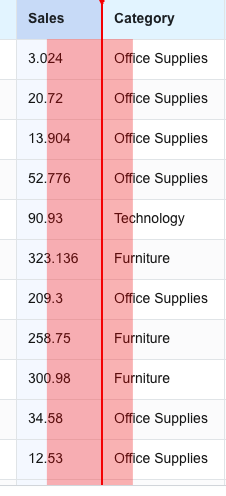
In this example, we set the color of the marker line for dragging and dragging the header to transpose to red, with a border line width of 2 and a red shadow with a transparency of 0.3.
Prohibit the transposition of a column
Sometimes, we don't want certain columns to participate in drag-and-drop transposition. For this requirement, VTable provides a column-specific configuration item columns.dragHeader. By configuring a column columns.dragHeader: false, you can prohibit the column from dragging and transposing.
As with the above code, the "Sales" column cannot be dragged and transposed.
Restrict dragging of frozen columns
Drag and drop the table header to move the position. Select different effects according to the business scenario for the rules of the frozen part. For example, you can prohibit dragging of frozen columns, or adjust the number of frozen columns.
Constraints can be made through the following configuration (only valid for ListTable):
dragOrder: {
  // Drag the table header to move the position. Rules for frozen parts. The default is fixedFrozenCount.
  frozenColDragHeaderMode?: 'disabled' | 'adjustFrozenCount' | 'fixedFrozenCount';
}
The different rules are described below:
"disabled" (disables adjusting the position of frozen columns): The headers of other columns are not allowed to be moved into the frozen column, nor are the frozen columns allowed to be moved out. The frozen column remains unchanged.
"adjustFrozenCount" (adjust the number of frozen columns based on the interaction results): allows the headers of other columns to move into the frozen column, and the frozen column to move out, and adjusts the number of frozen columns based on the dragging action. When the headers of other columns are dragged into the frozen column position, the number of frozen columns increases; when the headers of other columns are dragged out of the frozen column position, the number of frozen columns decreases.
"fixedFrozenCount" (can adjust frozen columns and keep the number of frozen columns unchanged): Allows you to freely drag the headers of other columns into or out of the frozen column position while keeping the number of frozen columns unchanged.
So far, we have introduced the drag-and-drop header transposition function of VTable, including the activation of the drag-and-drop header transposition function, the style configuration of the drag-and-drop header transposition mark line, and whether a certain column can be dragged. By mastering these functions, you can more easily perform data analytics and processing in VTable.
Validation When Moving Position Ends
Our internal default validation rule is: if dragging under a header hierarchy structure, it is not allowed to move positions across parent levels, only allowing moving positions within the same parent level. If it is a basic table using the row number rowSeriesNumber to drag and reorder data, no validation will be performed. When the default validation rule is not satisfied, VTable will display a mouse style prohibiting dragging during the mouse movement process.
However, some business requirements state that validation should be performed at the end of dragging to check if the conditions for dragging to reorder are met. If not met, the business layer will prompt or perform other operations. This requirement can be implemented through the hook function validateDragOrderOnEnd for validation. If it returns true, the move is successful; if it returns false, the move fails.
In the application scenario of the basic table ListTable, we may need to adjust the order of the data. VTable provides the rowSeriesNumber row number configuration, and in IRowSeriesNumber, there is a dragOrder property. When set to true, it will display the drag icon in the row number cell, allowing you to adjust the order of the data through dragging. For specific details, please refer to the tutorial.
Dragging and Reordering in Tree Structures
If it is a tree structure display, we internally limit it to only allow dragging and reordering within the same parent node. If you want a more flexible adjustment method, you can pass in the dataSource object and pass in the two methods canChangeOrder and changeOrder on the object.
Here is an example, by copying the dataSource, you can implement dragging order without strictly constraining movement between the same parent level, but instead allowing movement across parent levels, but only to positions with the same level: