It is not only a fully functional graph visualization library, but also an explorer of data relationships.
!!!###!!!title=row height column width——VisActor/VTable tutorial documents!!!###!!!!!!###!!!description=In the field of data analysis, tables are a common way of displaying data. Correctly setting the row height and column width of the table is of great significance to improve the readability and aesthetics of the data. This tutorial will focus on the table row height and column width calculation function in VTable, and learn how to correctly configure the row height and column width to meet actual needs.!!!###!!!
Row height and column width
In the field of data analysis, tables are a common way of displaying data. Correctly setting the row height and column width of the table is of great significance to improve the readability and aesthetics of the data. This tutorial will focus on the table row height and column width calculation function in VTable, and learn how to correctly configure the row height and column width to meet actual needs.
Column width calculation mode
In VTable, the calculation mode of table column width widthMode can be configured as standard (standard mode), adaptive (adaptive container width mode) or autoWidth (automatic column width mode). demo example. (If widthMode: 'autoWidth' is set, then each cell will participate in calculating the width. It can be imagined that this calculation process requires performance.)
Standard mode (standard): The table uses the width specified by the width attribute as the column width. If not specified, the default column width set by defaultColWidth or defaultHeaderColWidth is used.
Adaptive container width mode (adaptive): In adaptive container width mode, the table uses the width of the container to allocate column widths (the ratio of each column width is based on the width value in standard mode). If you do not want the header to participate in the calculation, you can set widthAdaptiveMode to only-body.demo example
Automatic column width mode (autoWidth): In automatic width mode, column width is automatically calculated based on the content in the column header and body cells, ignoring the set width attribute and defaultColWidth.
Row height calculation mode
The calculation mode of table row height heightMode can also be configured as standard (standard mode), adaptive (adaptive container width mode) or autoHeight (automatic row height mode).
Standard mode (standard): Use defaultRowHeight and defaultHeaderRowHeight as the row height.
Adaptive container height mode (adaptive): Use the height of the container to allocate the height of each row, and allocate based on the calculated height ratio of the content of each row. If you do not want the header to participate in the calculation, you can set heightAdaptiveMode to only-body. If you only want to use the default height to calculate the row height, you can set autoHeightInAdaptiveMode to false.
Automatic line height mode (autoHeight): Automatically calculate line height based on content, based on fontSize and lineHeight (text line height), and padding. The related configuration item autoWrapText automatically wraps lines, and can calculate the line height based on the multi-line text content after line wrapping.
Row height related configurations
##Default row height
In a VTable, you can set a uniform default row height value for the entire table. The default row height can be set through the defaultRowHeight configuration item. The following code example shows how to set the default row height to 50:
const table = new VTable.ListTable({
defaultRowHeight: 50});
The default row height set internally by VTable is 40.
Default row height of table header
In addition to setting the default row height, VTable also supports setting the row height of the table header. Set through the defaultHeaderRowHeight configuration item. This configuration item can be set to an array, corresponding to the height of the header rows at each level, or a numerical value to uniformly set the height of each row of the table.
It is defined as follows. If set to auto, the height can be calculated based on the content of the header cell.
/**The default row height of the table header can be set row by row. If not, take defaultRowHeight */defaultHeaderRowHeight: (number | 'auto') | (number | 'auto')[];
The following code example shows how to set the first-level header row height to 30 and the second-level header row height to 'auto':
const table = new VTable.ListTable({
  defaultHeaderRowHeight: [30, 'auto']
});
Row height fills the container: autoFillHeight
The configuration item autoFillHeight is used to control whether to automatically fill the container height. Different from the adaptive container effect of adaptive in height mode heightMode, autoFillHeight controls that only when the number of rows is small, the table can automatically fill the height of the container, but when the number of rows exceeds the container, it will be determined based on the actual situation. Scroll bars can appear at row height.
const table = new VTable.ListTable({
autoFillHeight: true});
Custom calculated row height
If you need to customize the logic for calculating row height, you can configure the customComputeRowHeight function to proxy the logic for calculating row height inside VTable.
Set row height by row index
You can set the row height through the rowHeightConfig configuration item. The configuration item can be set to an array, corresponding to the row height of each row. The key corresponds to the row index, and the height corresponds to the row height.
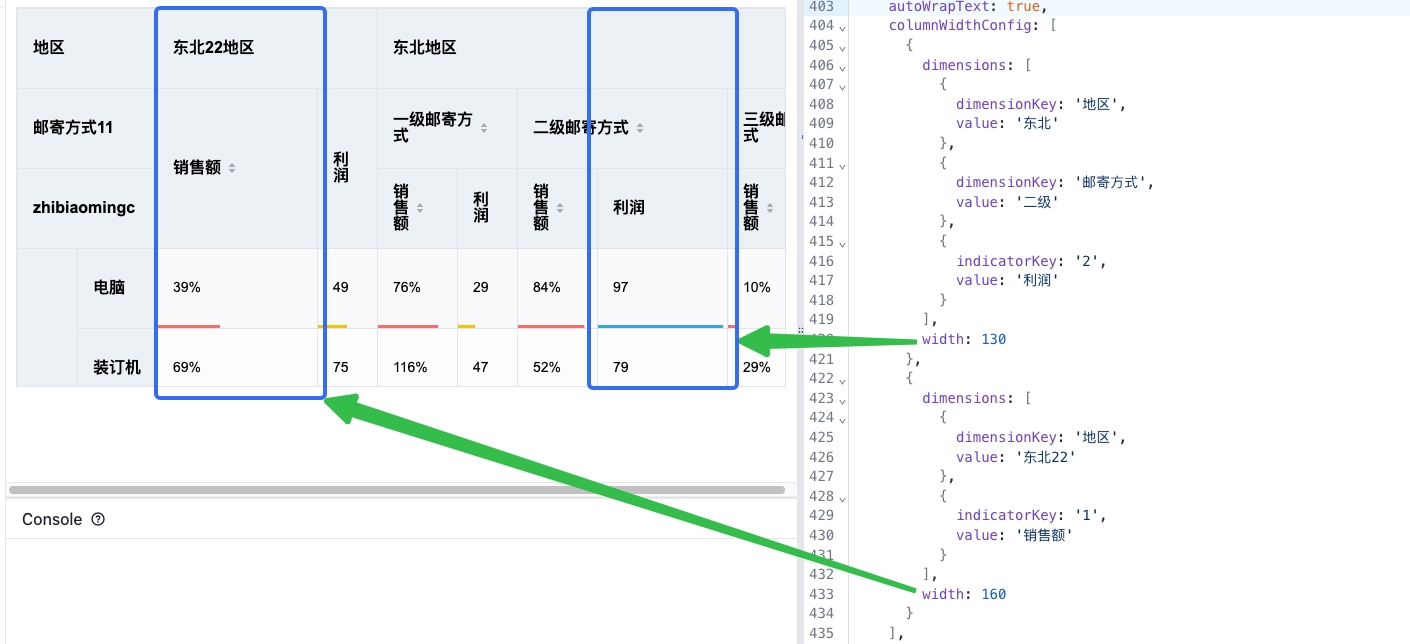
Besides configuring a specific width value in the column properties, you can also configure the column width through the columnWidthConfig configuration item. The configuration item can be set to an array, corresponding to the column width of each column. The key corresponds to the key defined in the specific configuration of each column in columns.
This is set via the columnWidthConfig configuration item, which can be set to an array corresponding to the column widths of each level of the dimension path.
Basic table ListTable, pivot table PivotTable, pivot chart PivotChart all support this configuration item.
In addition, pivot table and pivot chart also support the columnWidthConfigForRowHeader configuration item, which is used to set the column width of the row header.
Note the difference between columnWidthConfigForRowHeader and columnWidthConfig, columnWidthConfigForRowHeader sets the column width of the row header through the row dimension key, while columnWidthConfig sets the column width through the column dimension path. If you do not want to set the row header column width through the dimension key, you can also set it through the defaultHeaderColWidth configuration item.
Default column width
In a VTable, you can set a uniform default column width value. The default column width can be set through the defaultColWidth configuration item. The following code example shows how to set the column width to 100:
const table = new VTable.ListTable({
defaultColWidth: 100});
Default column width of row header
In addition to setting the default column width, VTable also supports setting the column width of the row header. Set through the defaultHeaderColWidth configuration item, which can be set to one, corresponding to the width of the row header column at each level.
/**The default column width of the table header can be set column by column. If not, take defaultColWidth */defaultHeaderColWidth: (number | 'auto') | (number | 'auto')[];
The following code example shows how to set the column width of the first-level row header to 50 and the column width of the second-level row header to 60:
const table = new VTable.ListTable({
  defaultHeaderColWidth: [50, 60]
});
It should be noted that this configuration only works for row headers. If it is a column header, this configuration item will not be considered (the logic will be executed according to the width setting defined in the body part).
Specific examples include:
Transpose the basic table, such as configuring defaultHeaderColWidth: [50, 'auto'], which means that the width of the first column of the header of the transposed table is 50, and the second column adapts to the width according to the cell content.
For a pivot table, if defaultHeaderColWidth: [50, 'auto'] is configured, it means that the width of the first column of the row header of the pivot table is 50 (i.e., the first-level dimension), and the second column (the second-level dimension) is adapted to the cell content. width.
During the process of configuring column widths, you may encounter scenarios where you need to limit the maximum or minimum column width of a certain column. VTable provides maxWidth and maxWidth configuration items to limit the maximum and minimum column width of each column. The following code example shows how to set the maximum column width of a column to 200 and the minimum column width to 50:
When using "auto-width mode" it may be necessary to limit the calculated maximum column width. By setting the limitMaxAutoWidth configuration item, you can avoid display abnormalities caused by a certain column width being too large. The limitMaxAutoWidth configuration item supports setting a specific value or Boolean type. If set to true or the configuration is not set, 450 will be used to limit the maximum column width. For example, set the limit to the maximum column width to 500:
table = new VTable.ListTable({
// ...Other configuration itemslimitMaxAutoWidth: 500});
Column width limit configuration: limitMinWidth
When dragging the column width, it is easy to drag the width to 0. This may cause certain interaction problems when dragging it back again, or the functional restrictions should not drag it into a hidden column. In this case, you can configure limitMinWidth. Limit the minimum column width, for example, limit the minimum draggable width to 20.
Note: If set to true, the column width will be limited to a minimum of 10px when dragging to change the column width. If set to false, there will be no limit. Or set it directly to some numeric value. Default is 10px.
table = new VTable.ListTable({
// ...Other configuration itemslimitMinWidth: 20});
Column width fills the container: autoFillWidth
The configuration item autoFillWidth is used to control whether to automatically fill the container width. Different from the adaptive container effect of adaptive in width mode widthMode, autoFillWidth controls that only when the number of columns is small, the table can automatically fill the container width, but when the number of columns exceeds the container, it will be based on the actual situation. To set the column width, scroll bars will appear.
const table = new VTable.ListTable({
autoFillWidth: true});
Calculate column width based on content and only calculate the header or body part: columnWidthComputeMode
When calculating the content width, limit the calculation to only the header content or the body cell content, or all of them can be calculated.
const table = new VTable.ListTable({
//Consider body cell content when calculating column widthcolumnWidthComputeMode: 'only-header',
widthMode: 'autoWidth'});
#FAQ
Set adaptive content for specific columns to calculate column width
If you do not want to calculate the column width for each column, you can use width in columns to define it without setting widthMode: 'autoWidth'.
Column width is adaptive according to the header content
If you only need to calculate the header content width, you can use columnWidthComputeMode: 'only-header' to achieve it. However, it needs to be used with the setting widthMode:'autoWidth'.
Transpose table column width configuration problem
Please use defaultHeaderColWidth to specify the width of each column in the header part, and use defaultColWidth in the body part.
If width is declared in columns, we will traverse the maximum number value of the width configured in columns as the column width of all columns. If there is no width configuration with a number value, but one of the columns is configured with auto, all column widths will be automatically calculated. In order to make the configuration clearer and more reasonable, we recommend using defaultColWidth to specify the column width.
Table Width and Height Configuration
Typically, you need to specify the container's width and height to determine the overall width and height of the table. If you don't specify the width and height, and you want VTable to automatically expand the container based on the content, you can set canvasWidth to 'auto' and canvasHeight to 'auto'. At the same time, use maxCanvasWidth and maxCanvasHeight to limit the maximum width and height.
How to cancel double-click automatic column width
By default, double-clicking the interval line between two columns will adjust the column width on the left of the interval line to adapt to the content. If you don't want to double-click to automatically adjust the column width, you can set ListTable.resize.disableDblclickAutoResizeColWidth to true in the configuration.
So far, we have introduced the table row height and column width calculation function in VTable, including row height, column width configuration, and table width mode. By mastering these functions, you can display and analyze data in VTable more conveniently to meet various practical needs.