


AI Tools Help VTable Component Development
In this tutorial, we will demonstrate how to cleverly utilize VTable component documentation along with tools like Cursor and DeepSeek to let AI automatically generate the code we need. Let's dive into the detailed process.
Development Steps
Create Initial Project
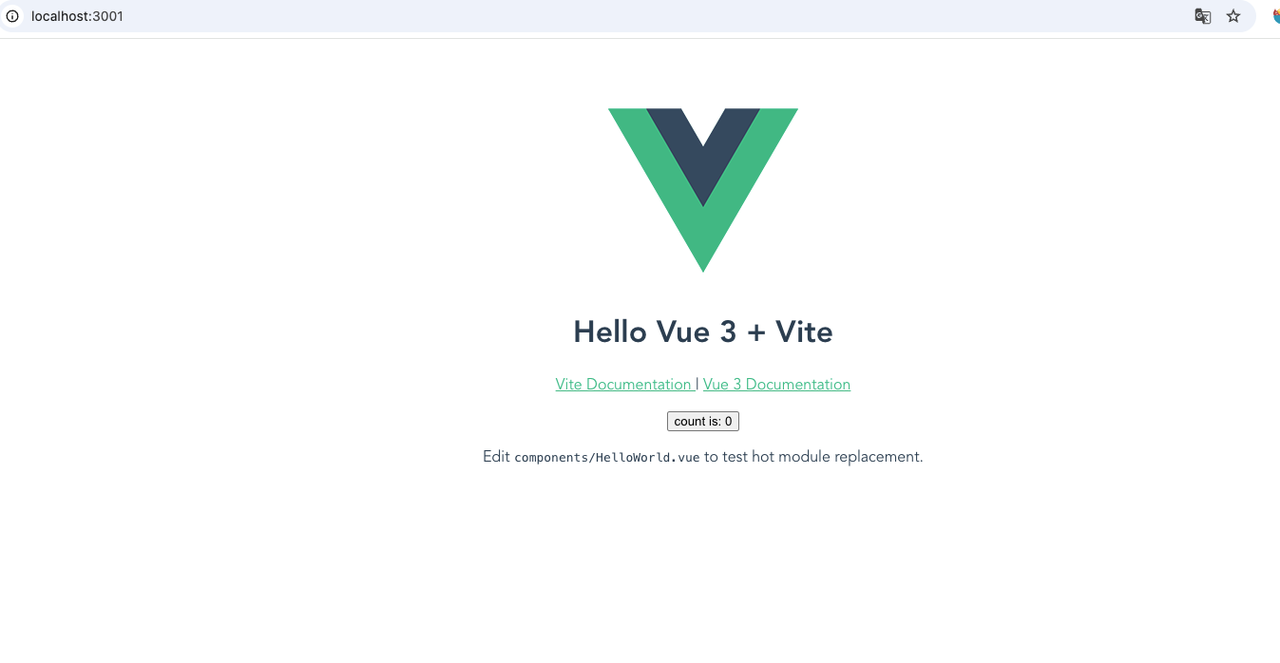
First, let's create a simple initial project (using Vue as an example). Run the relevant commands to set up the basic environment for using VTable components.
Configure DeepSeek Model in Cursor
This is not limited to the DeepSeek model - other models can be used as well.

Invoke AI Interaction Panel in Cursor and Generate Code
After setting up the project environment, use cmd + i to bring up the AI interaction panel. We'll directly ask AI to generate some basic code for inserting a VTable.
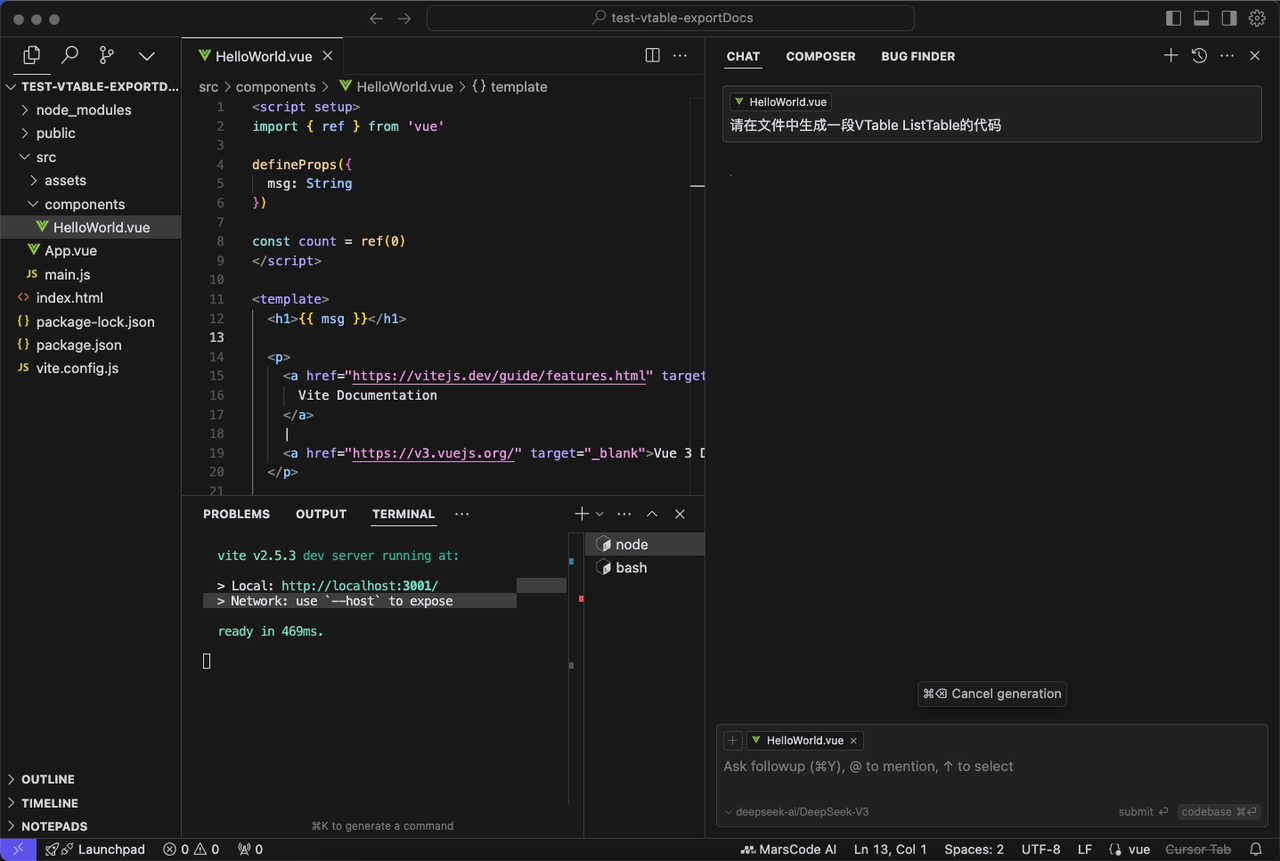
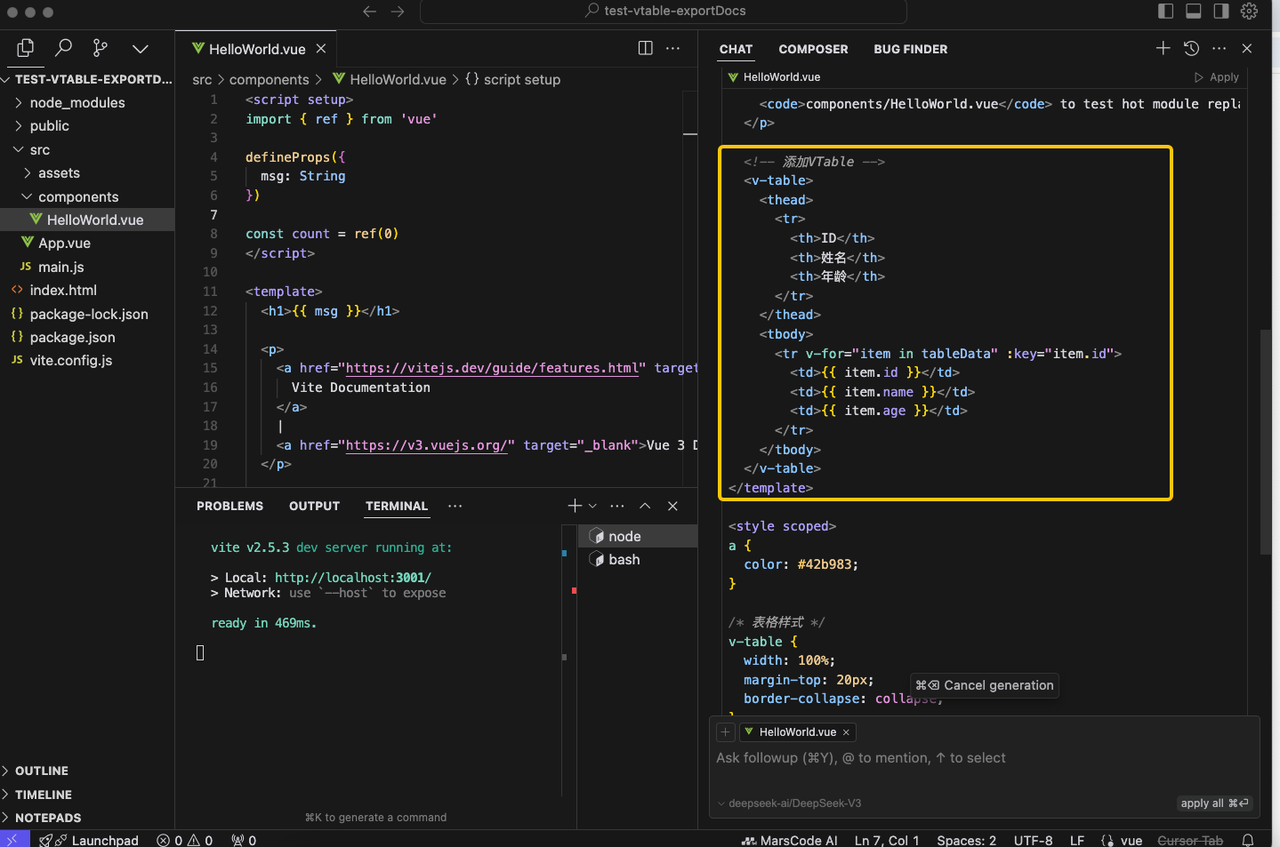
However, the initial generation shows that AI doesn't recognize VTable's ListTable, possibly due to inability to accurately identify VTable's ListTable configuration.
Inject Official Documentation into @Docs
To solve this issue, we inject the official documentation into @Docs.
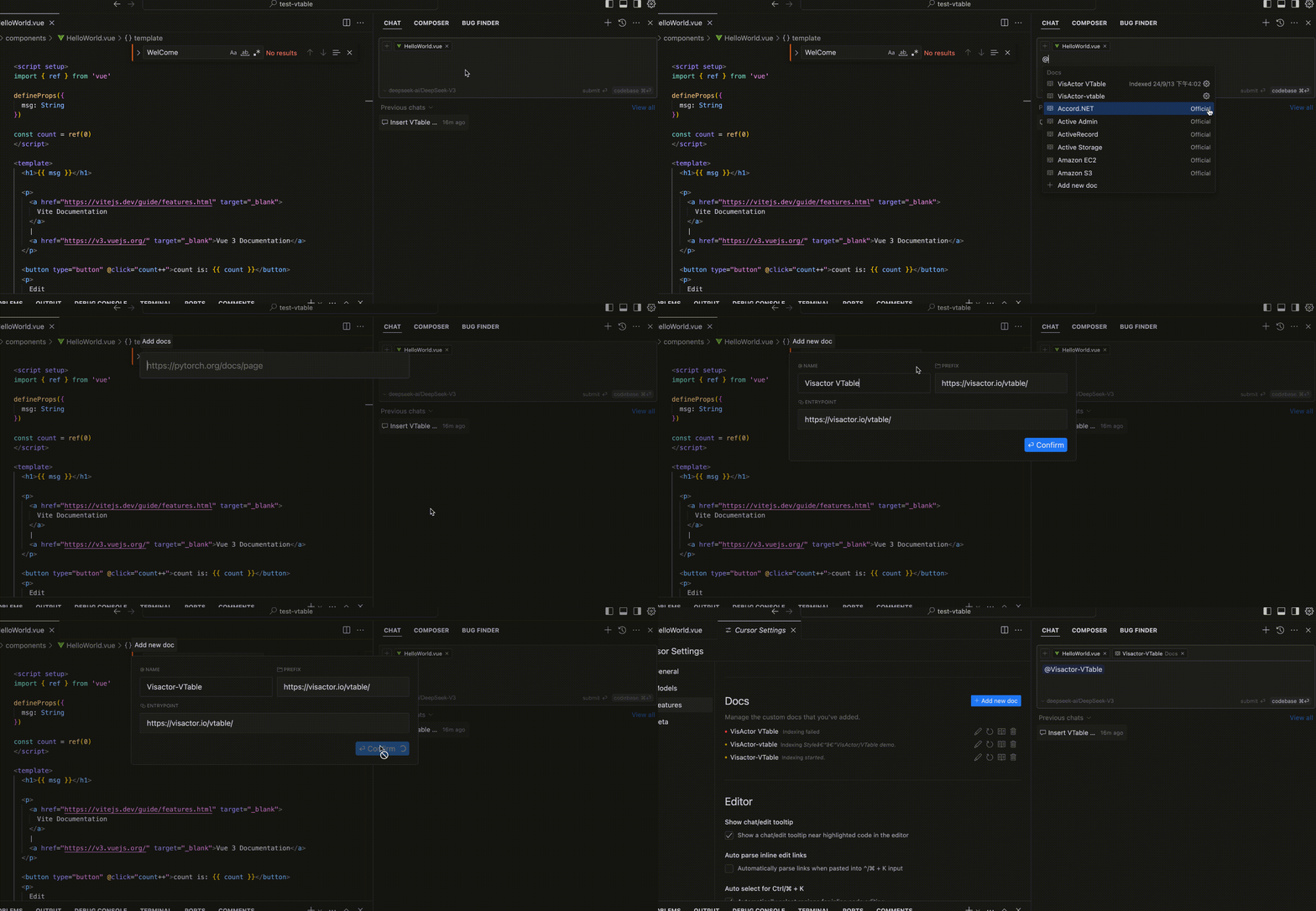
By explicitly specifying VisActor VTable in @Docs within the prompt, we're delighted to find that AI can now correctly write implementation logic according to VTable's options.
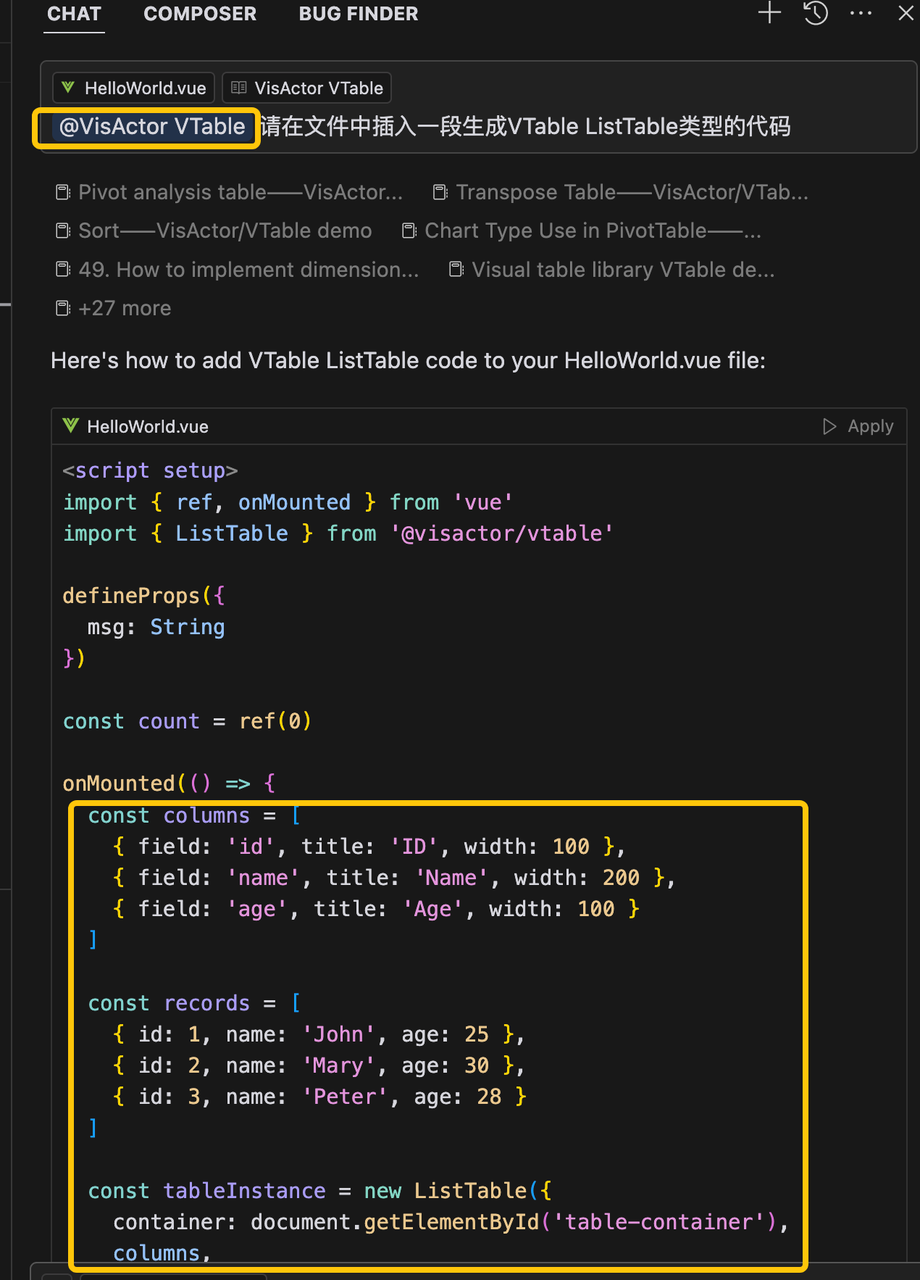
Code Application and Effect Display
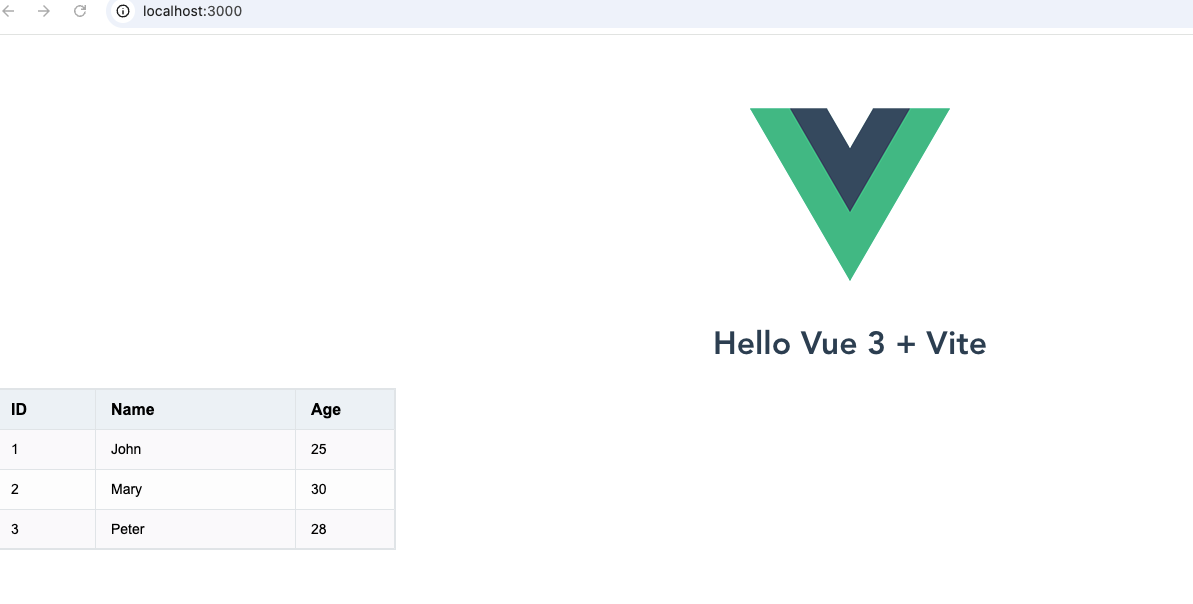
Copy the generated code to the appropriate file and run the project to see the initial effect - the table is correctly generated.
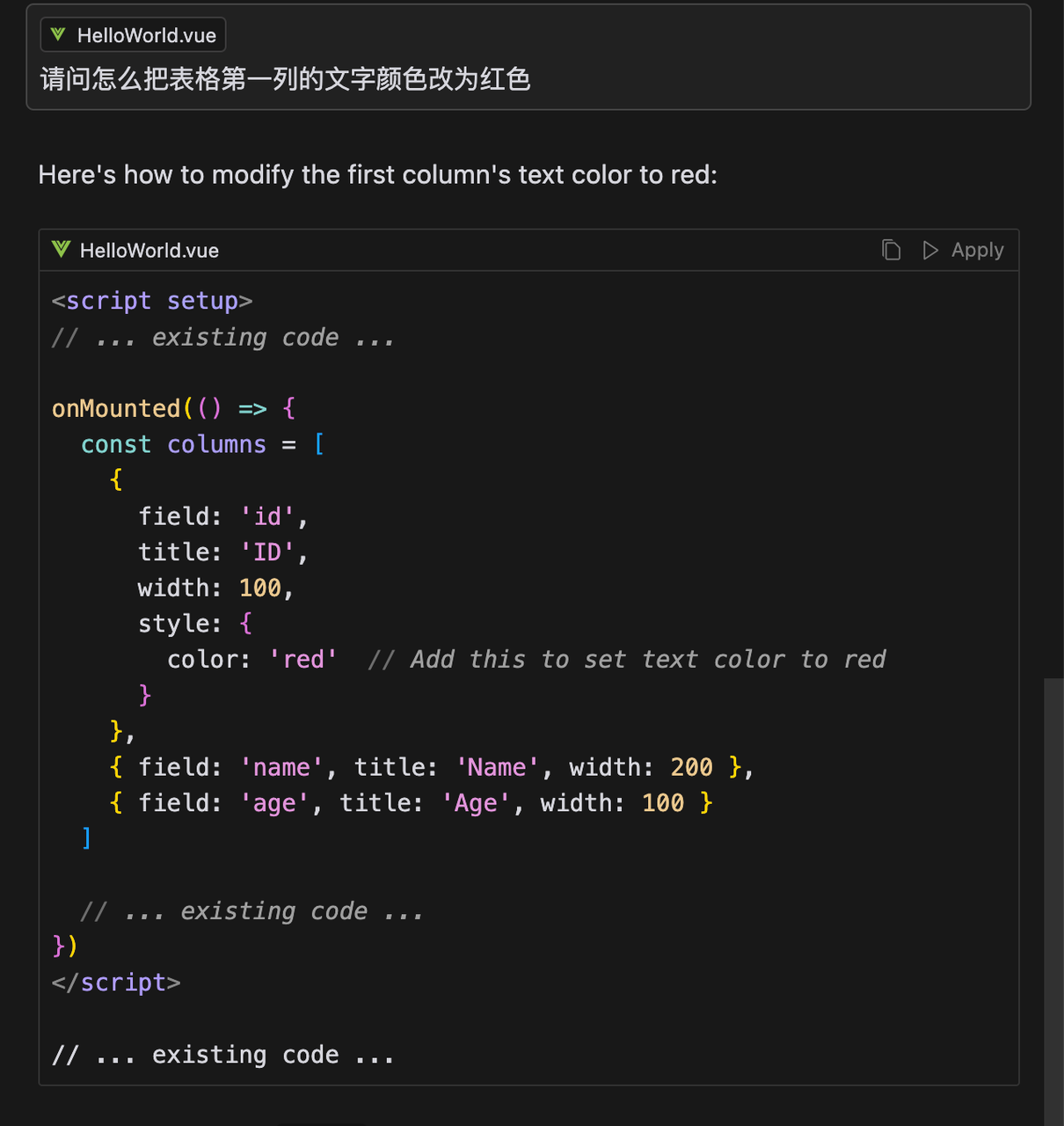
Then, we ask AI to modify the table style. AI provides reasonable modification suggestions.
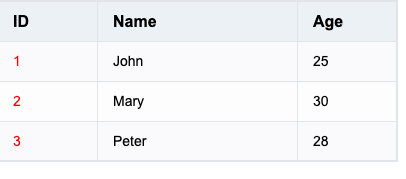
After running the project again, we get a display effect that better meets our requirements:
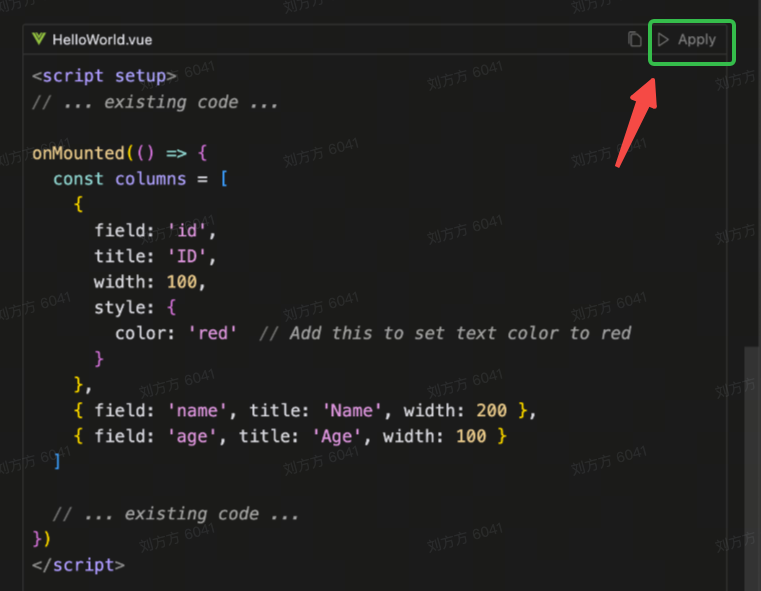
Here's another mention of Cursor's awesome capability: the powerful one-click apply to source file function - clicking Apply eliminates the need for copy and paste.
Advantages of Combining VTable Component Library with Cursor
- Improve Development Efficiency
- Quick Access: Directly consult VTable API documentation through Cursor
- Smart Suggestions: Precise code completion based on VTable documentation
- Enhanced Development Experience
- Seamless Integration: Get VTable usage guidance directly in the development environment
- Real-time Feedback: Quickly validate code effects
- Reduce Learning Costs
- Documentation Assistance: Access VTable official examples anytime
- Code Generation: Automatically generate code compliant with VTable standards
- Improve Code Quality
- Standard Checking: Ensure code follows VTable best practices
- Performance Optimization: Automatically generate high-performance table configurations
VisActor VTable provides developers with a powerful table solution, and combined with AI tools, it significantly improves development efficiency while reducing learning costs. Visit the VisActor official website to learn more about VTable features and cases.