It is not only a fully functional graph visualization library, but also an explorer of data relationships.
!!!###!!!title=Common Flow Editor——VisActor/VGraph tutorial documents!!!###!!!!!!###!!!description=Users can freely arrange the position layout and connection relationship of nodes by dragging and dropping, so as to build and edit the directed graph freely and flexibly. This method has a high degree of freedom and flexibility, and can build and edit more complex directed graphs. Therefore, it may also require post-data verification, otherwise the resulting directed graph may not meet the business expectations. This component can also be used with the Viewer component, and react nodes can provide more possibilities for display and interaction. vGraph encapsulates the basic functions into a component, which can be referenced as follows:```javascriptimport { CommonFlowEditor } from '@visactor/vgraph';const editor = new CommonFlowEditor(options);```You can also experience it in the demo [Directed Graph Free Arrangement](/vgraph/demo/editor/commonFlowEditor).**When should you use the directed graph free editing solution?**- For scenarios such as task flow arrangement, operator arrangement, etc. Users can freely edit relationships to obtain any DAG (even any graph) structure without restrictions.For example, relationship adjustments including the following situations:| Loop/Self-loop | Reverse Edge | Cross-level Connection | Duplicate Edge | Non-connected ||:---:|:---:|:---:|:---:|:---:|| 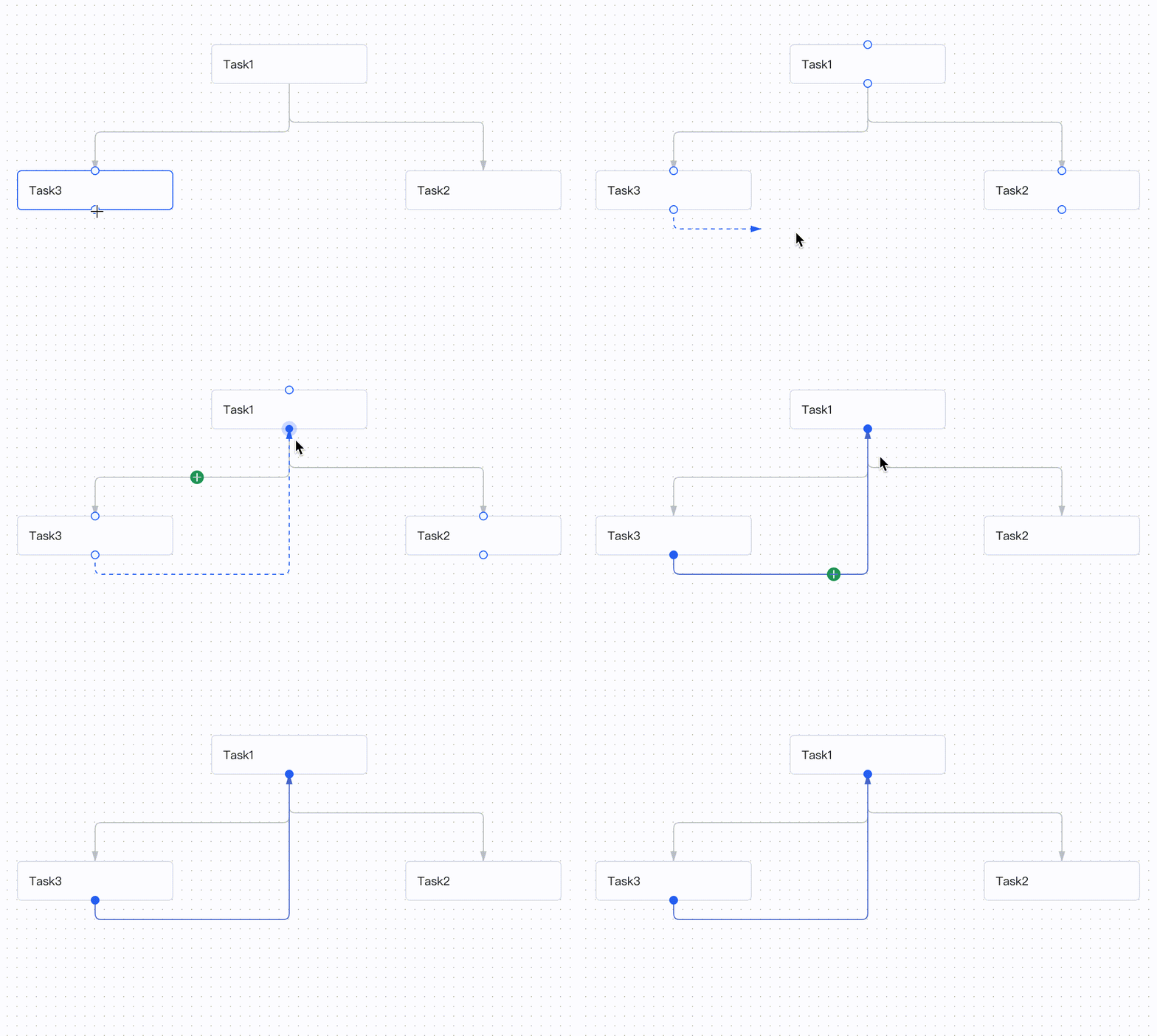 | 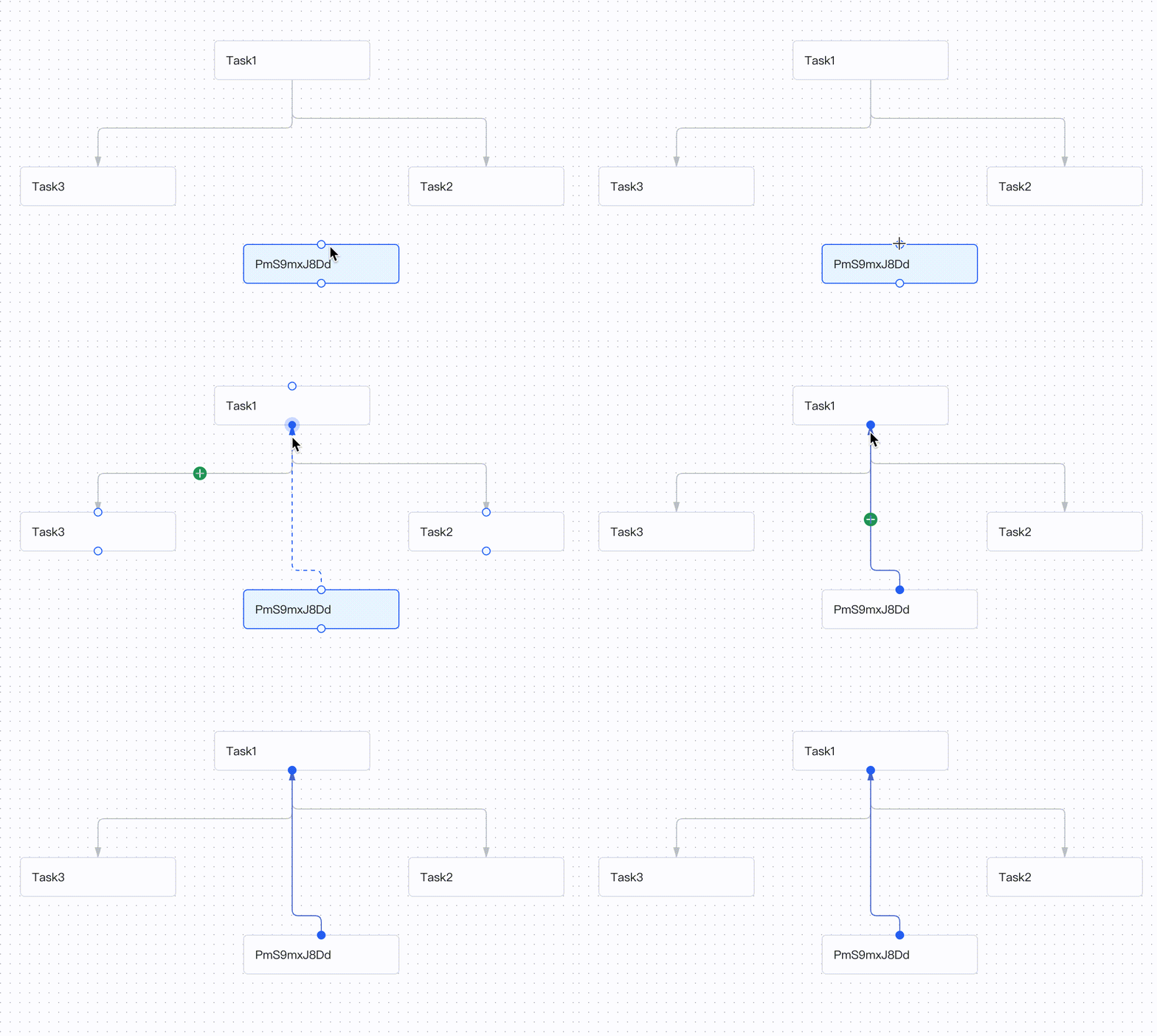 | 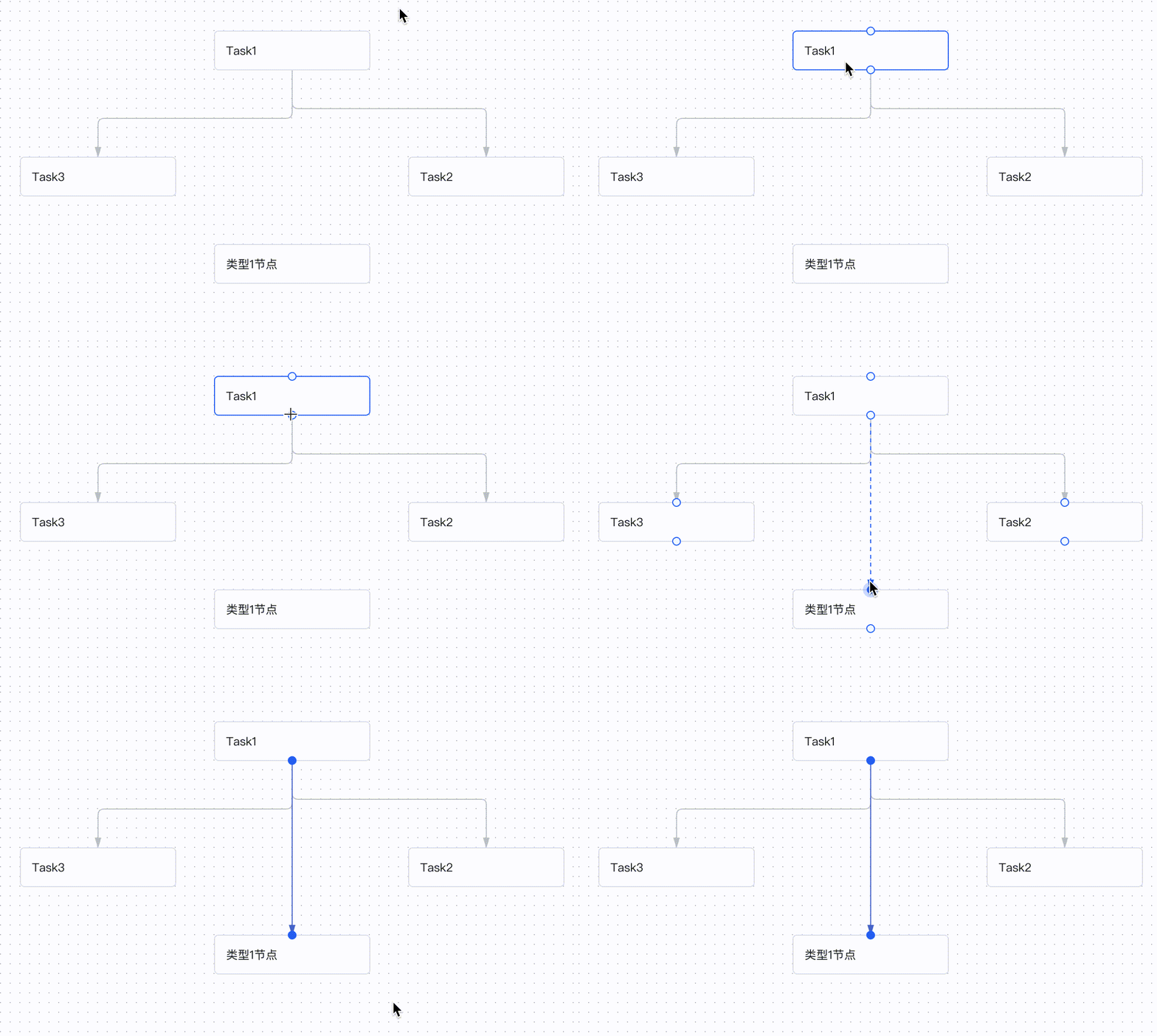 | 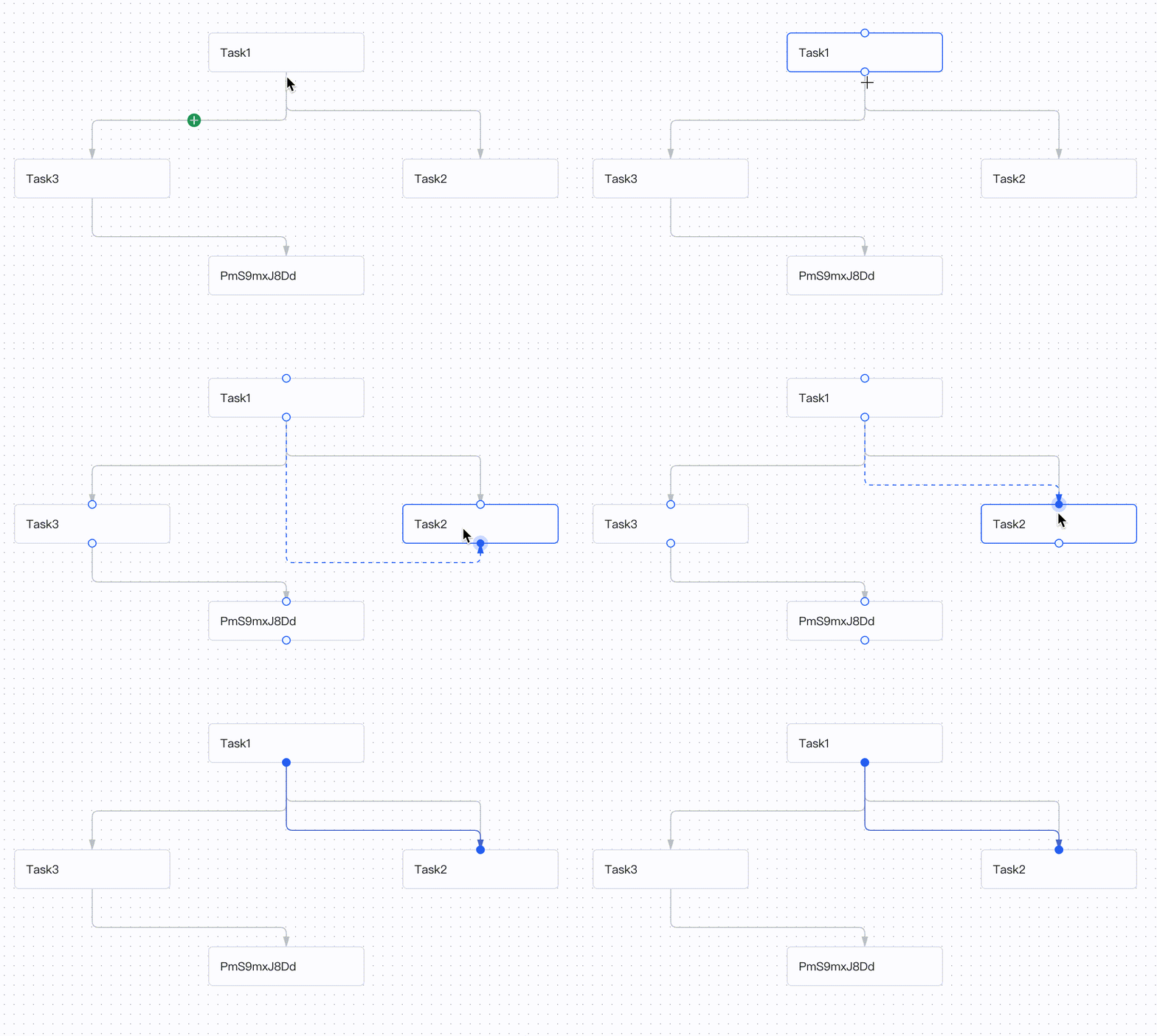 | 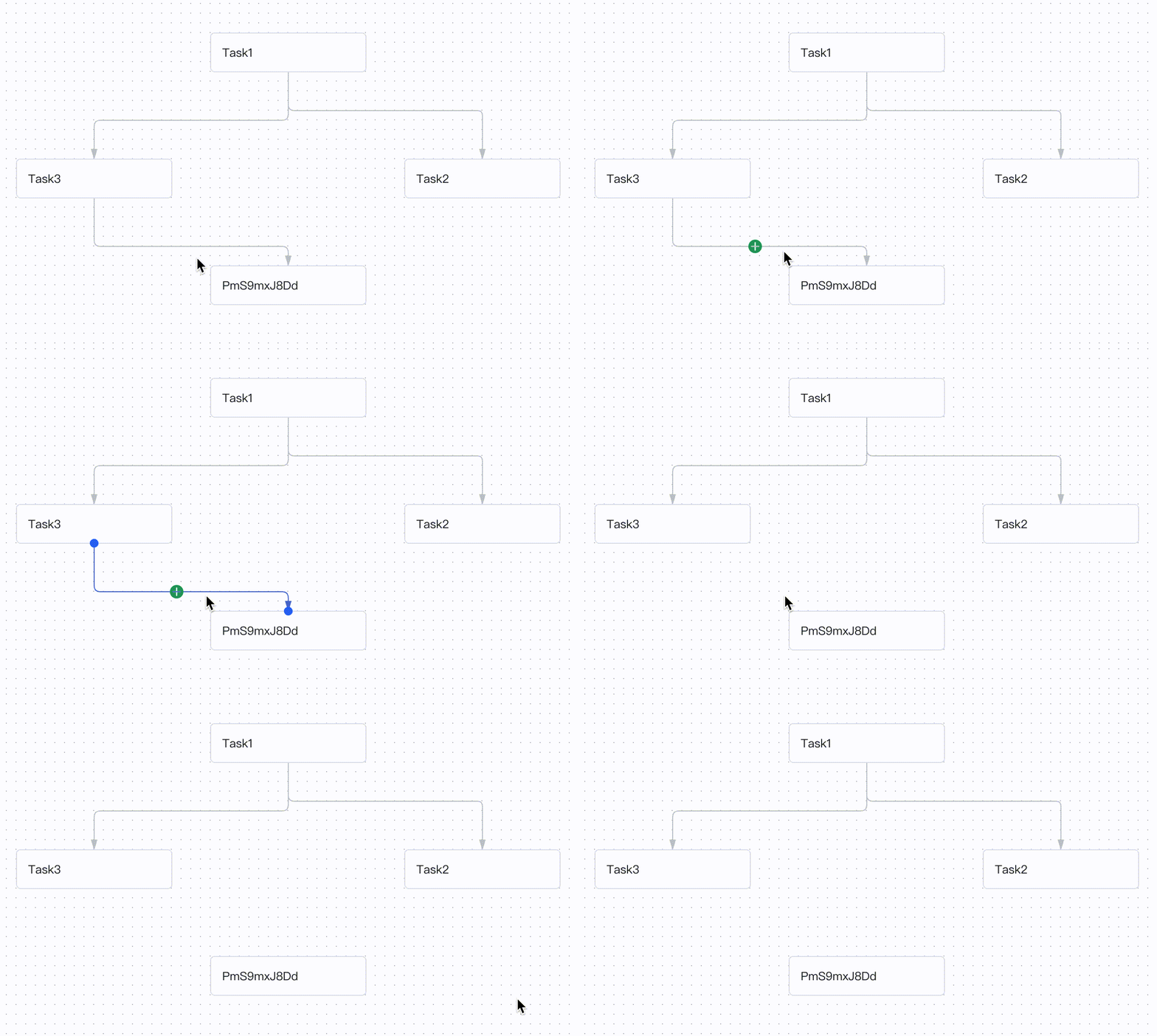 |**What interactive capabilities does directed graph free editing include?**The free editing of directed graphs includes the general capabilities in the flowchart editing scene:- **Move nodes**: When dragging a node with the mouse, the connection line will automatically calculate a suitable path to avoid other nodes, and display alignment lines at appropriate positions to assist in layout.<img src="/vgraph/guide/api/drag_node.gif" width="600px" />- **Drag connection lines**: Not only does it have built-in intelligent routing for connection lines, but you can also accurately assist users in connecting legal connection lines by customizing the configuration items of the [connection line editing component](/vgraph/guide/editor-spec/edgeEditor), and it also supports re-editing connection lines. It has a built-in user-friendly anchor point automatic adsorption function, and a maturely designed style, and you can also customize the style of anchor points in various states.<img src="/vgraph/guide/api/drag_edge.gif" width="600px" />- **Shortcuts**: Built-in general shortcuts, including copy, cut, paste, delete, undo, redo, and select all. For details, see [Shortcuts](/vgraph/guide/editor-spec/shortcuts) - **Copy/Cut/Paste**: Built-in user-friendly paste method. Compared with the traditional interaction of pasting near the original node and then dragging it by yourself, this solution's paste will directly paste to the mouse position when using shortcut keys, which saves the process of dragging nodes and makes the operation more efficient.<img src="/vgraph/guide/api/paste.gif" width="600px" />- **Undo/Redo**: Data operations in instance methods support undo and redo by default. For custom data operations, we also provide custom methods, see [Command](/vgraph/guide/editor-spec/command#Partial-Custom-Commands)- **React Node**: The component can be used with the react node component Viewer, which can not only customize the node style, but also customize the anchor points.!!!###!!!
Directed Graph Free Editing
Users can freely arrange the position layout and connection relationship of nodes by dragging and dropping, so as to build and edit the directed graph freely and flexibly. This method has a high degree of freedom and flexibility, and can build and edit more complex directed graphs. Therefore, it may also require post-data verification, otherwise the resulting directed graph may not meet the business expectations. This component can also be used with the Viewer component, and react nodes can provide more possibilities for display and interaction. vGraph encapsulates the basic functions into a component, which can be referenced as follows:
import { CommonFlowEditor } from'@visactor/vgraph';
const editor = new CommonFlowEditor(options);
When should you use the directed graph free editing solution?
For scenarios such as task flow arrangement, operator arrangement, etc. Users can freely edit relationships to obtain any DAG (even any graph) structure without restrictions.
For example, relationship adjustments including the following situations:
Loop/Self-loop
Reverse Edge
Cross-level Connection
Duplicate Edge
Non-connected
What interactive capabilities does directed graph free editing include?
The free editing of directed graphs includes the general capabilities in the flowchart editing scene:
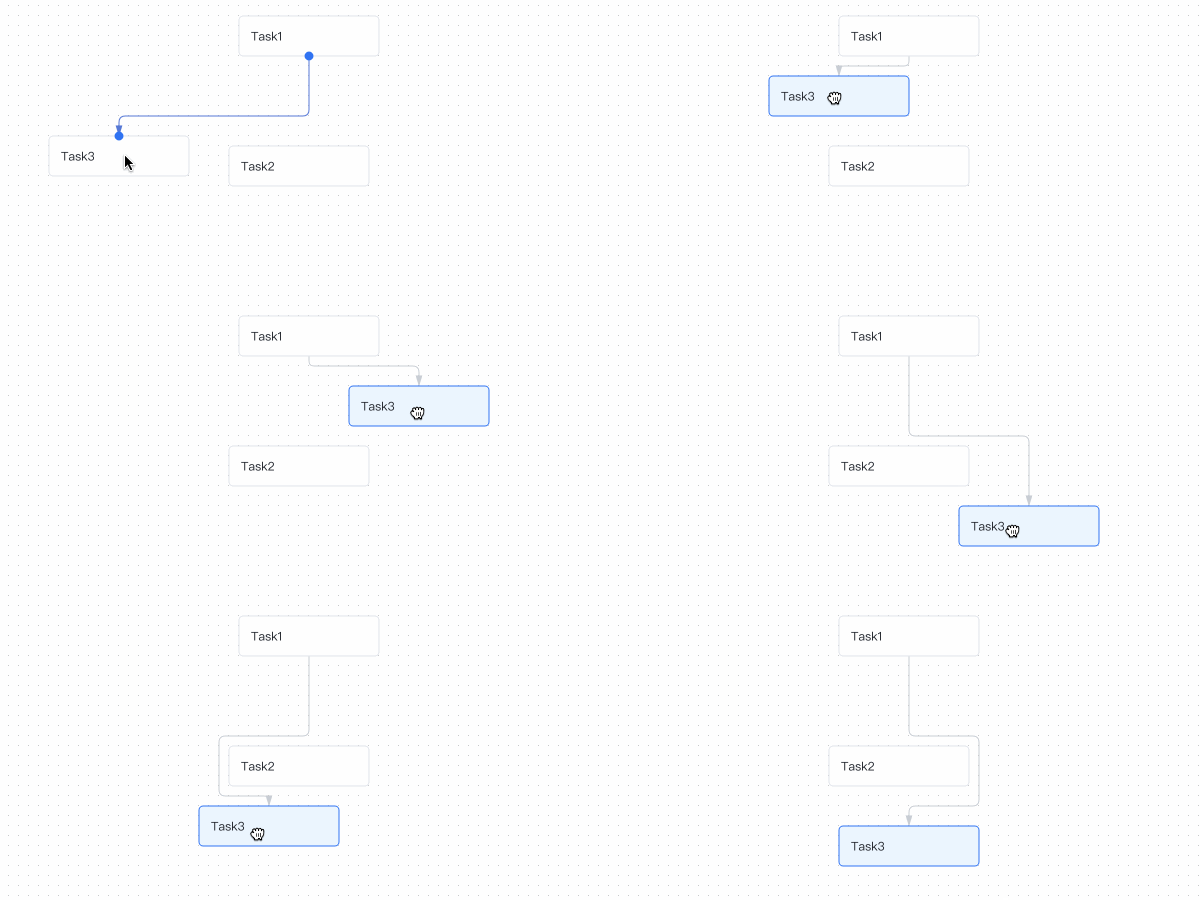
Move nodes: When dragging a node with the mouse, the connection line will automatically calculate a suitable path to avoid other nodes, and display alignment lines at appropriate positions to assist in layout.
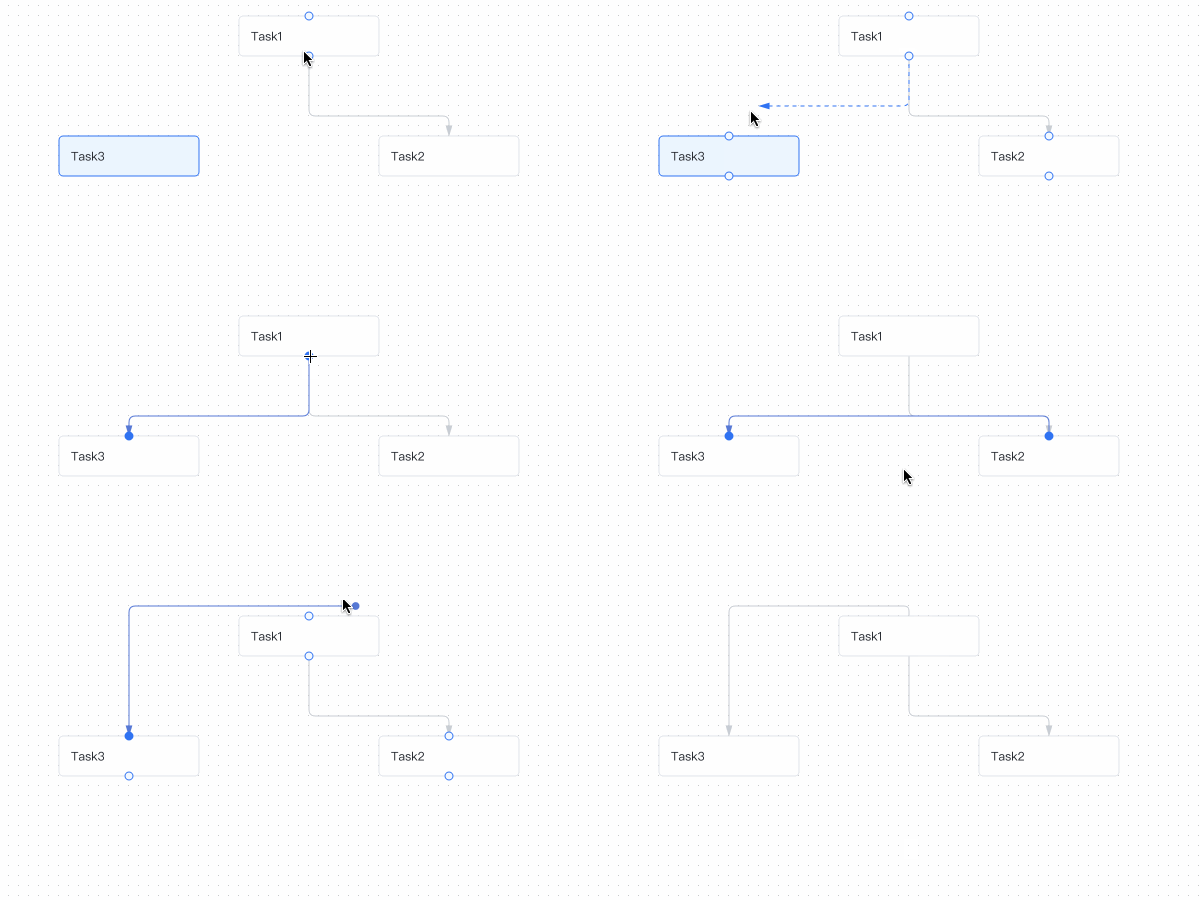
Drag connection lines: Not only does it have built-in intelligent routing for connection lines, but you can also accurately assist users in connecting legal connection lines by customizing the configuration items of the connection line editing component, and it also supports re-editing connection lines. It has a built-in user-friendly anchor point automatic adsorption function, and a maturely designed style, and you can also customize the style of anchor points in various states.
Shortcuts: Built-in general shortcuts, including copy, cut, paste, delete, undo, redo, and select all. For details, see Shortcuts
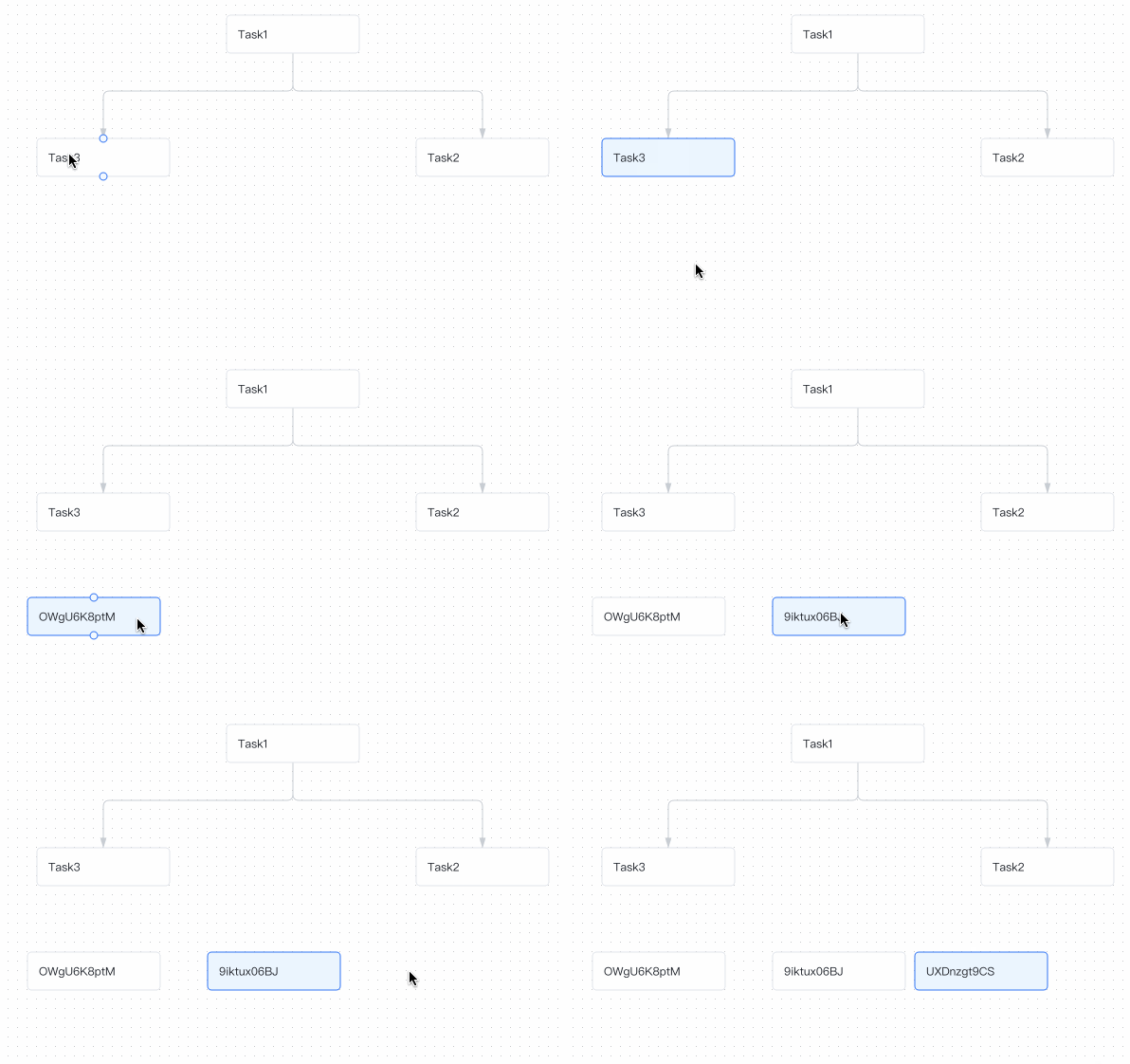
Copy/Cut/Paste: Built-in user-friendly paste method. Compared with the traditional interaction of pasting near the original node and then dragging it by yourself, this solution's paste will directly paste to the mouse position when using shortcut keys, which saves the process of dragging nodes and makes the operation more efficient.
Undo/Redo: Data operations in instance methods support undo and redo by default. For custom data operations, we also provide custom methods, see Command
React Node: The component can be used with the react node component Viewer, which can not only customize the node style, but also customize the anchor points.
Configuration Items
Field
Type
Description
container
string | HTMLDivElement
[Required] Editor container
graphSize
number[]
[Required] Container size, in the format [width, height]
padding
number[] | number
Padding on all four sides of the canvas
data
GraphData
Initial data in the graph. If not filled, it will be initialized as a blank canvas.
setDefaultNode
(nodeData) => NodeConfigs
Consistent with Graph. Batch set the configuration of nodes in the graph. For specific configuration items, please see Node Configuration Items
Consistent with Graph. Set the style of the keyShape of the node in the graph in a specific state
setDefaultEdge
(edgeData) => StateConfigs
Consistent with Graph. Batch set the configuration of the connection lines in the graph. For specific configuration items, please see Connection Line Configuration Items
Consistent with Graph. Set the style of the keyShape of the group in the graph in a specific state
scroller
{ enable: boolean; options?: ScrollerOptions; }
Scroller component configuration. Disabled by default. For specific configuration items, please refer to: Scroller Component
nodeMover
{ enable: boolean; options?: NodeMoverOptions; }
Node editing component nodeMover configuration. Enabled by default. For specific configuration items, please refer to: nodeMover Component
edgeEditor
{ enable: boolean; options?: edgeEditorOptions; }
Connection line editing component edgeEditor configuration. Enabled by default. For specific configuration items, please refer to: edgeEditor Component
gridStep
number
Grid step size. Default is 10.
background
'grid' | 'dot' | 'none'
Background image style. Default is 'dot'
router
boolean
Whether to enable intelligent routing. Default is true.
Configuration for selecting graphic elements, single selection by default, any graphic element can be selected. multiple controls whether multiple selections are possible. modifierKey configures which key to press to achieve multiple selections. The default is Ctrl and ⌘. shouldSelectItem will be triggered every time you click to select, and if it returns false, it cannot be selected.
Instance Methods
Instance Method
Return Value
Description
undo()
void
Undo.
redo()
void
Redo.
async copy()
boolean
Copy, returns whether the execution was successful. Implemented by the clipboard, the data will be stored in the clipboard, so it is an asynchronous method. Can be copied and pasted across pages.
async cut()
boolean
Cut, returns whether the execution was successful.
async paste()
boolean
Paste, returns whether the execution was successful.
getCommands()
Command[]
Get the commands configured in the current editor. You can also get the commands and then make certain modifications to them. For example, modify the execution logic of the copy command. For the use of commands, please see Command
getLastMousePosition()
[number, number]
Get the latest position of the mouse in the graph before executing this command.
alignGrid()
void
Fine-tune the node coordinates. Align the center of the node in the editor with the center of the grid.
refreshEdgesPath(edges?: Edge[])
void
Update the intelligent routing of the specified connection lines. If not specified, update the routing of all connection lines.
selectNode(node: Node)
void
Select the specified node. The selection operation is not recorded in the operation stack.
addNode(nodeData: nodeData)
boolean
Add a node. Returns whether the execution was successful. Can be undone and redone by the operation stack.
removeNode(node: Node)
boolean
Delete the specified node. Returns whether the execution was successful. Can be undone and redone by the operation stack.
Insert a node between the two endpoints of the connection line, where position is a value from 0 to 1. Returns whether the execution was successful. Can be undone and redone by the operation stack.
selectEdge(edge: Edge)
void
Select the specified connection line. The selection operation is not recorded in the operation stack.
addEdge(edgeData: EdgeData)
boolean
Add a connection line. Returns whether the execution was successful. Can be undone and redone by the operation stack.
removeEdge(edge: Edge)
boolean
Delete the specified connection line. Returns whether the execution was successful. Can be undone and redone by the operation stack.
Move the selected entities into the viewport. autoScale determines whether to use scaling.
getGraph()
Graph
Get the graph instance in the editor.
getStack()
Stack
Get the operation stack instance in the editor.
changeMode(mode: 'edit' | 'read' | string)
void
Change the editor mode. The component has two default modes, 'edit' and 'read'. Other custom modes can be implemented by getting and modifying the stack and command related content, refer to Stack Component.
getComponent(key: string)
Component
key is one of 'grid', 'router', 'nodeMover', 'edgeEditor', 'scroller', 'background', 'shortcuts'. Get the corresponding component instance in the editor.
setComponent(key: string, Component)
void
Set the specified component in the editor to the specified instance.
changeSize(width: number, height: number)
void
Modify the canvas size of the editor.
getSnapshot()
snapshotData
Get the current graph data snapshot. Can generally be used with batchChange.
Calculate a new path for a duplicate connection line. edge is the existing connection line instance, newConfigs is the new connection line configuration, count is the number of repetitions, and scale is the distance between adjacent connection lines.