


title: 1-Setting-Up-the-Development-Environment
key words: VisActor, VChart, VTable, VStory, VMind, VGrammar, VRender, Visualization, Chart, Data, Table, Graph, GIS, LLM
Github
1.1 Register an Account
The VisActor team usually develops and maintains issues on GitHub. Please visit GitHub, click the Sign up button on the top right to register your account, and start your journey into open source.
If you are unable to access GitHub due to certain restrictions, please let us know and use Gitee for project development.
1.2 Fork the Project
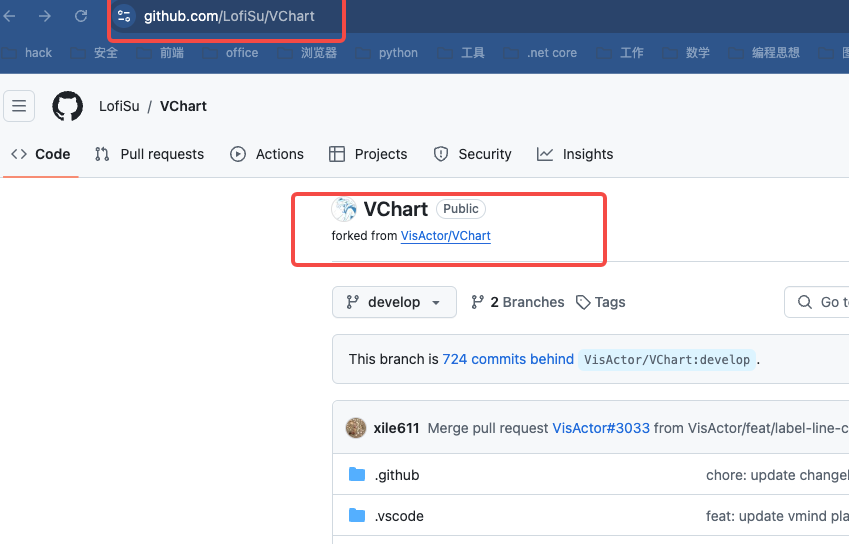
First, you need to fork this project. Go to the VChart project page and click the Fork button on the top right.

The project will appear as xxxx (your GitHub username)/vchart in your GitHub account.
Local Development Environment
2.1 Install Git
Since the code is hosted on GitHub, we use git for version control.
Git is a version control system that helps track and manage code changes in software development projects. It aids developers in recording and managing code history, making team collaboration, code version control, and code merging easier. With Git, you can track each version of every file, switching and comparing between different versions easily. Git also offers branch management features, enabling simultaneous multiple parallel development tasks.
-
Visit the Git official website: https://git-scm.com/
-
Download the latest version of the Git installer.
-
Run the downloaded installer and follow the prompts in the installation wizard.
-
After installation, you can verify the installation by using
git versionin the command line.
HM4G2J09L6:~ xuanhun$ git version
**git version 2.39.2 (Apple Git-143)**
2.2 Install a Development Tool (Recommended: VSCode)
VisActor predominantly uses a frontend tech stack. There are many tools available for frontend development, but we recommend using VSCode. Of course, you can use any development tool you prefer.
If you're not familiar with VSCode, it might be helpful to read the official documentation: https://vscode.js.cn/docs/setup/setup-overview
2.3 Install Doubao Marscode AI Programming Assistant
Marscode AI Programming Assistant
Doubao MarsCode Programming Assistant is an AI coding assistant from Doubao that provides AI features represented by intelligent code completion. It supports mainstream programming languages and IDEs, offering suggestions for writing a single line of code or an entire function during development. In addition, it offers features like code explanation, unit test generation, and problem fixing, improving development efficiency and quality. For more information, please refer to the Doubao MarsCode Programming Assistant documentation.
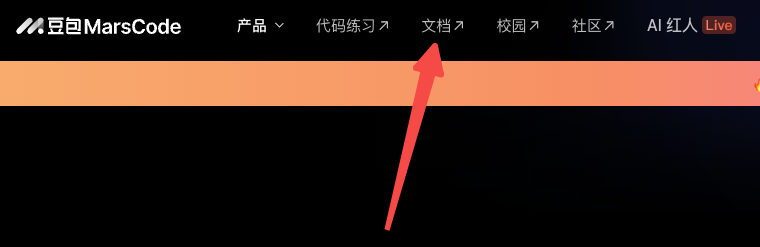
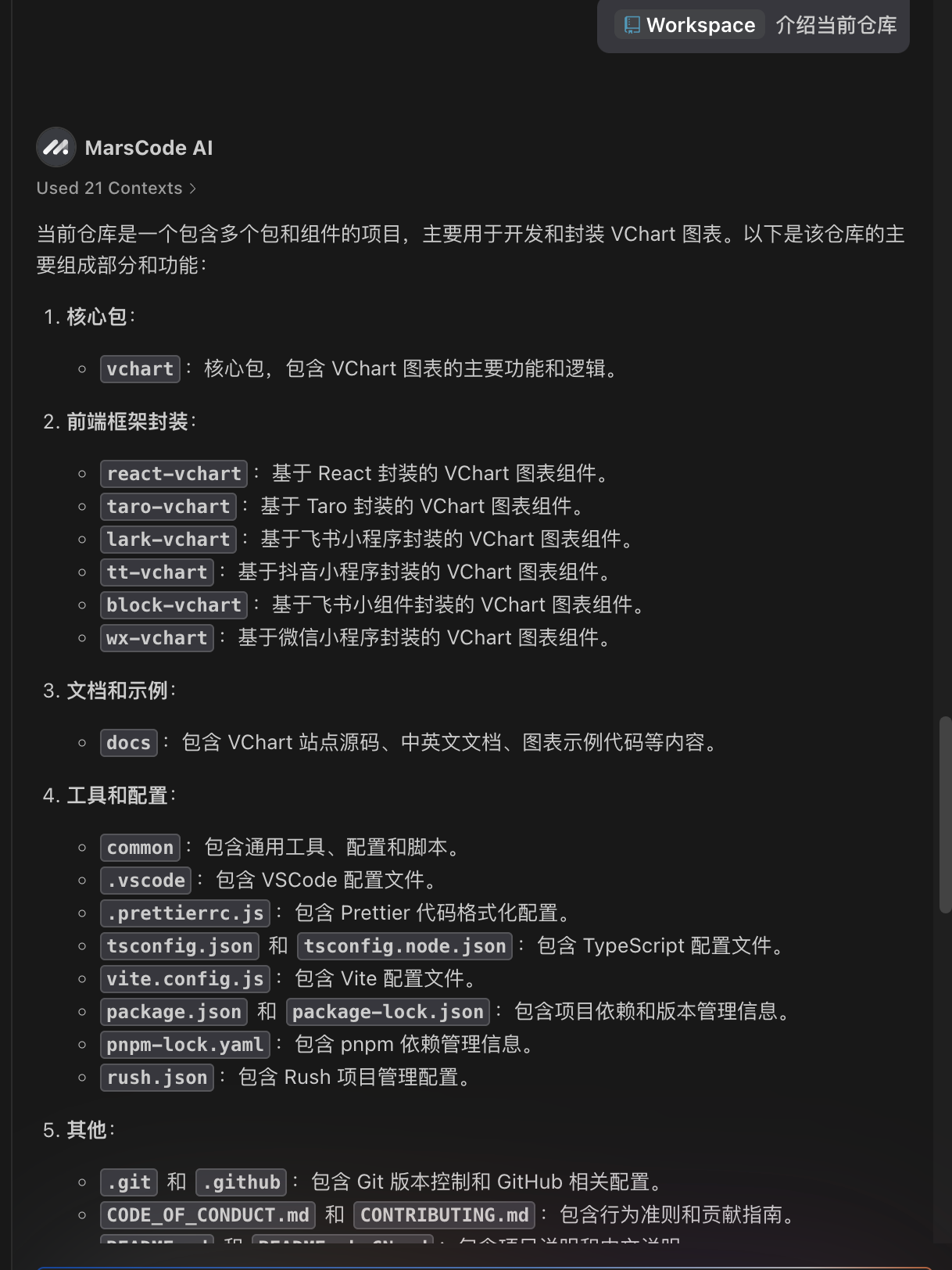
With Marscode, VisActor developers can more easily understand code, write documentation, develop features, and perform unit testing. Detailed examples will be provided in specific task contribution guides.
2.4 Clone the Code to Local
Enter the VChart folder and add the remote address for VChart.
git remote add upstream https://github.com/VisActor/VChart.git
Get the latest source code for VChart.
git pull upstream develop
Initialize the Project
First, globally install @microsoft/rush
$ npm i --global @microsoft/rush
Then, execute the command to view the demo
# Install dependencies
$ rush update
# Start the demo page for vchart
$ rush start
# Start the demo page for react-vchart
$ rush react
# Start the local documentation site
$ rush docs
Next Steps
At this point, you have completed the preparations for developing the code. Please continue reading the next tutorial to begin working on different types of tasks.
github: github.com/VisActor
VisActor WeChat subscription message (you can join the WeChat group via the subscription menu):

VisActor official website: www.visactor.io/
Feishu group:

discord: https://discord.com/invite/3wPyxVyH6m